
Audio
Start in Library to add an audio file. In Cues, choose how it should play. Use Outputs to select and test the device, and Audio Usage Map to see what triggers a cue.
Before you start
Have a supported sound file, a working host audio device and a safe listening volume. Keep coil power disconnected when testing event-driven cues.
Play a cue through the intended output
-
In Library, choose Upload Asset and select the sound. Expected: the asset appears in the library or an explicit upload/format error is reported.
-
Create/edit a cue in Cues, select the asset and choose its playback behaviour. Expected: the cue references an existing file and has a deliberate loop/stop policy.
-
Check Outputs and preview at low volume. Expected: sound is heard from the intended device; a successful file upload alone does not establish audio output.
-
Choose Save Changes, then add Play Cue to a test rule using the observed input/event. Expected: one input produces the intended cue.
-
Check Audio Usage Map before removing or duplicating assets. Expected: references can be understood without breaking an existing cue.
Check the result
Test a short one-shot cue before loops or overlapping audio. Use a stable device choice suitable for the service account, not only your desktop login.
Safety: Start with low amplifier volume. Simulated inputs can run other rules; isolate the test and keep powered outputs disabled.
Troubleshooting
If preview is silent, check file, output selection, mute/volume and service audio permissions before changing the rule. If preview works but the input does not, inspect the trigger, enabled/saved rule and cue reference.
Related guides
Next: Rules, Events in Logs, Media.
Audio tabs and playback controls
Library Tab
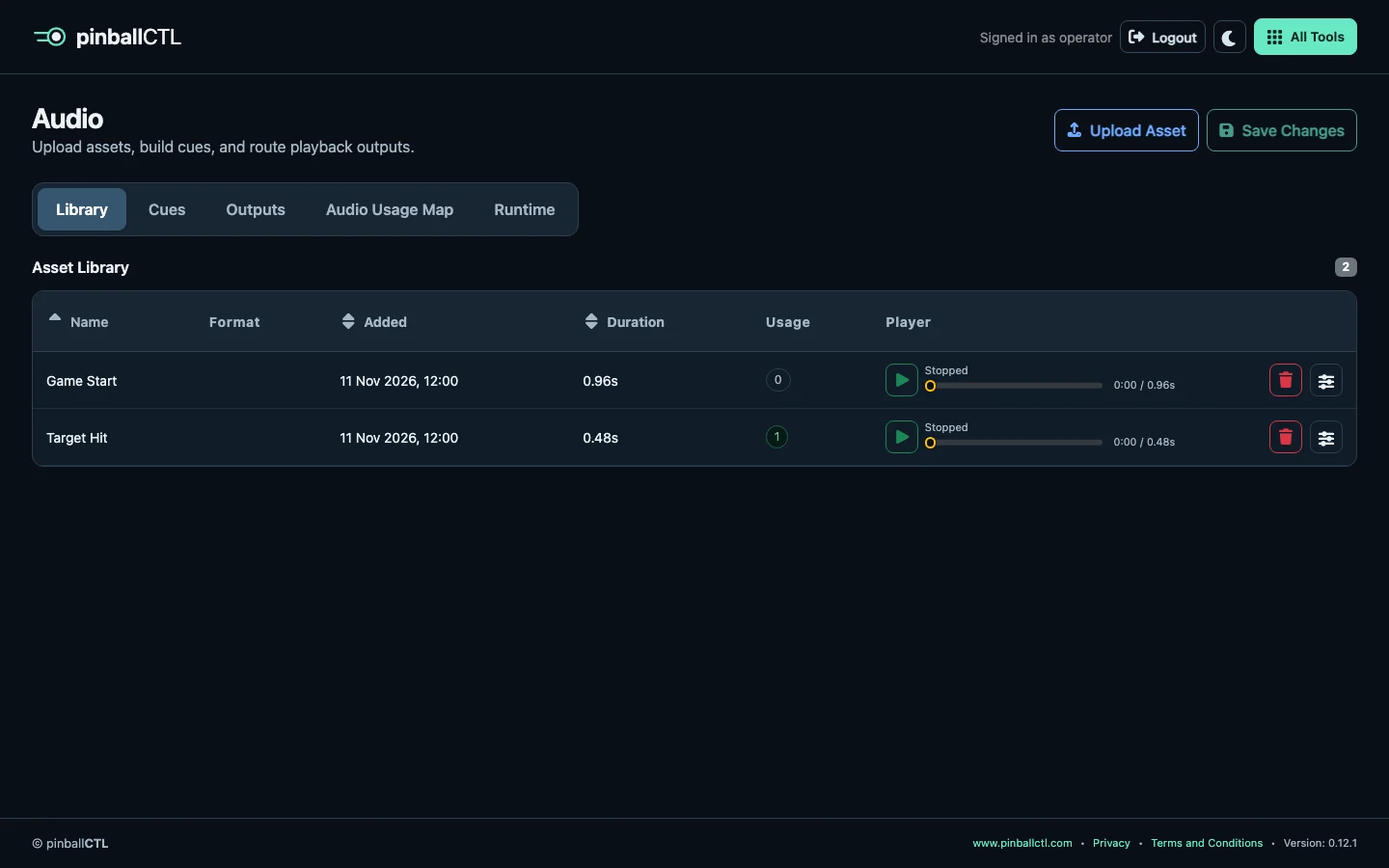
[screenshot-feature-audio-library.webp]
Select Upload Asset beside Save Changes from any Audio tab. Drop one or more files into the upload dialog or select them from your computer. The dialog shows progress, and the uploaded files appear in Library.
Preview a file with its inline player. Sort the library by name, date added or duration, and use the usage count to see which assets are referenced. Short clips show fractional-second durations.
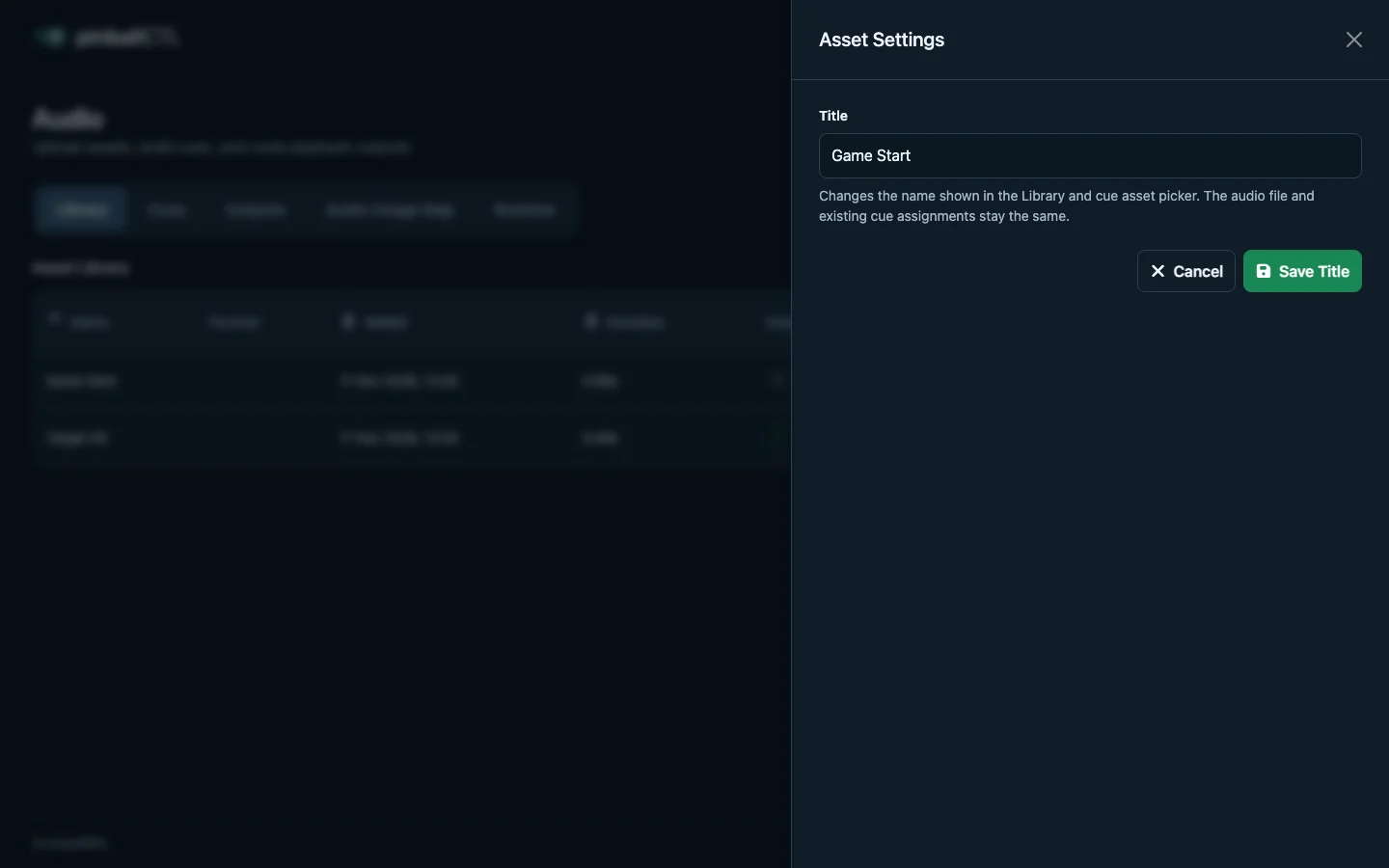
Select the sliders icon on an asset row to edit its title. Save Title applies the edit. Closing or cancelling keeps the previous title. Audio derives a title from the filename when you leave it blank.
Cues Tab
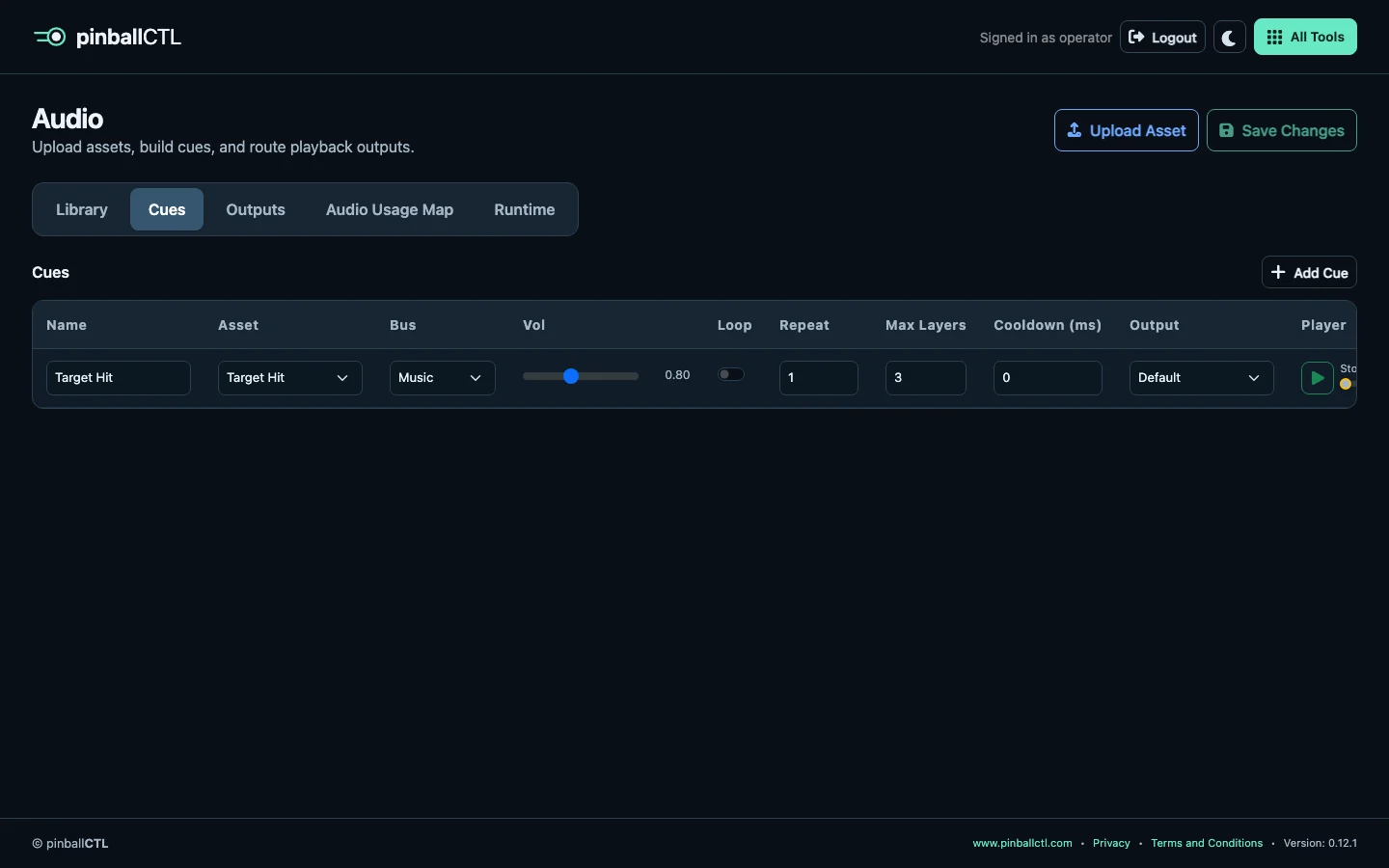
Name the cue, select its library asset and choose an output target and a bus (SFX, Music, Voice or Ambient). Set volume from 0.0 to 2.0, then configure looping, repeat count and cooldown in milliseconds.
Preview uses the same backend routing as runtime playback. Save Changes becomes available after an edit. If you leave with an unsaved draft, Audio asks you to confirm.
Outputs Tab
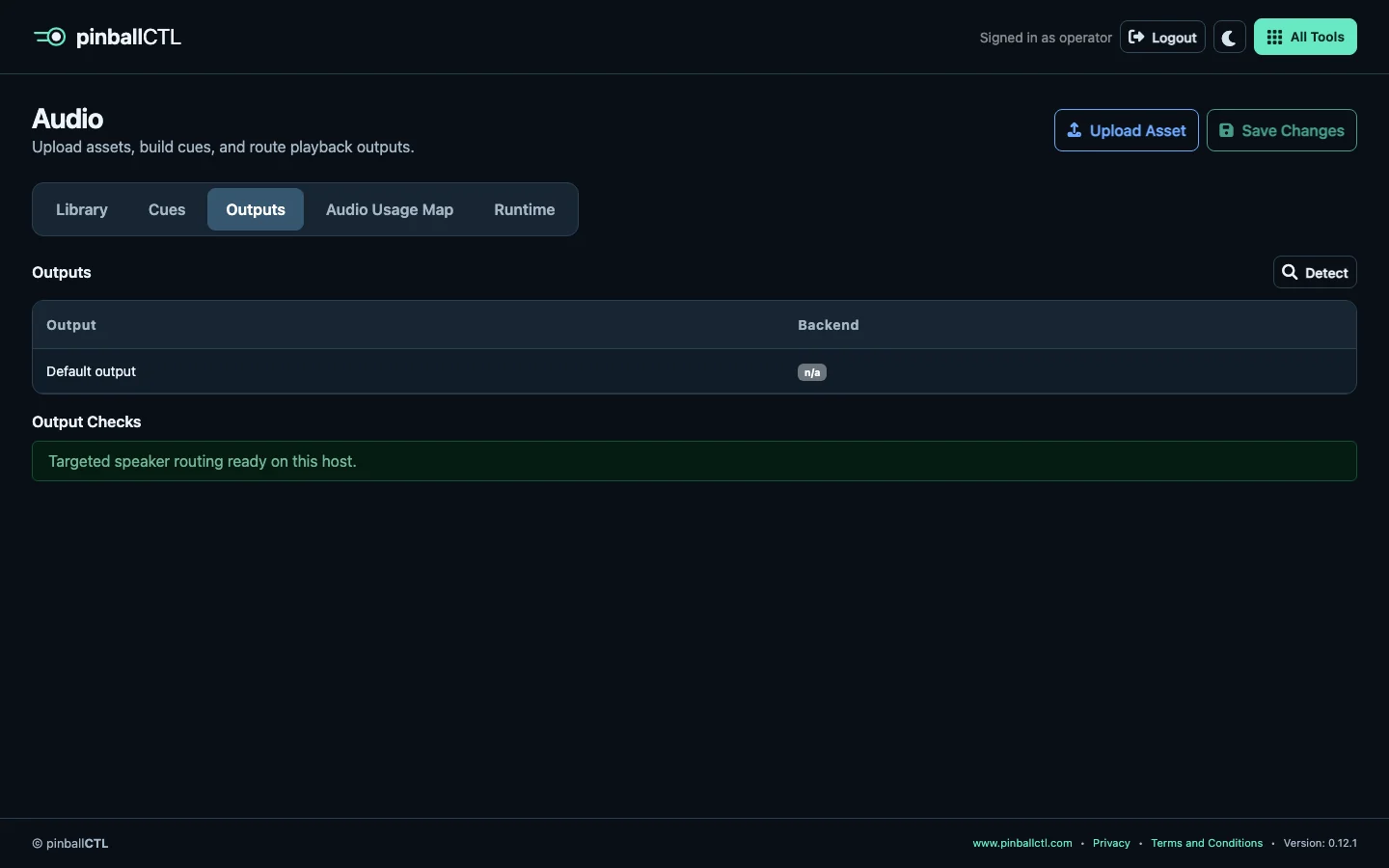
Check the detected host devices and the audio backend’s readiness. The runtime lists active and orphaned playback entries. Use the stop controls to end playback you no longer need.
Audio Usage Map Tab
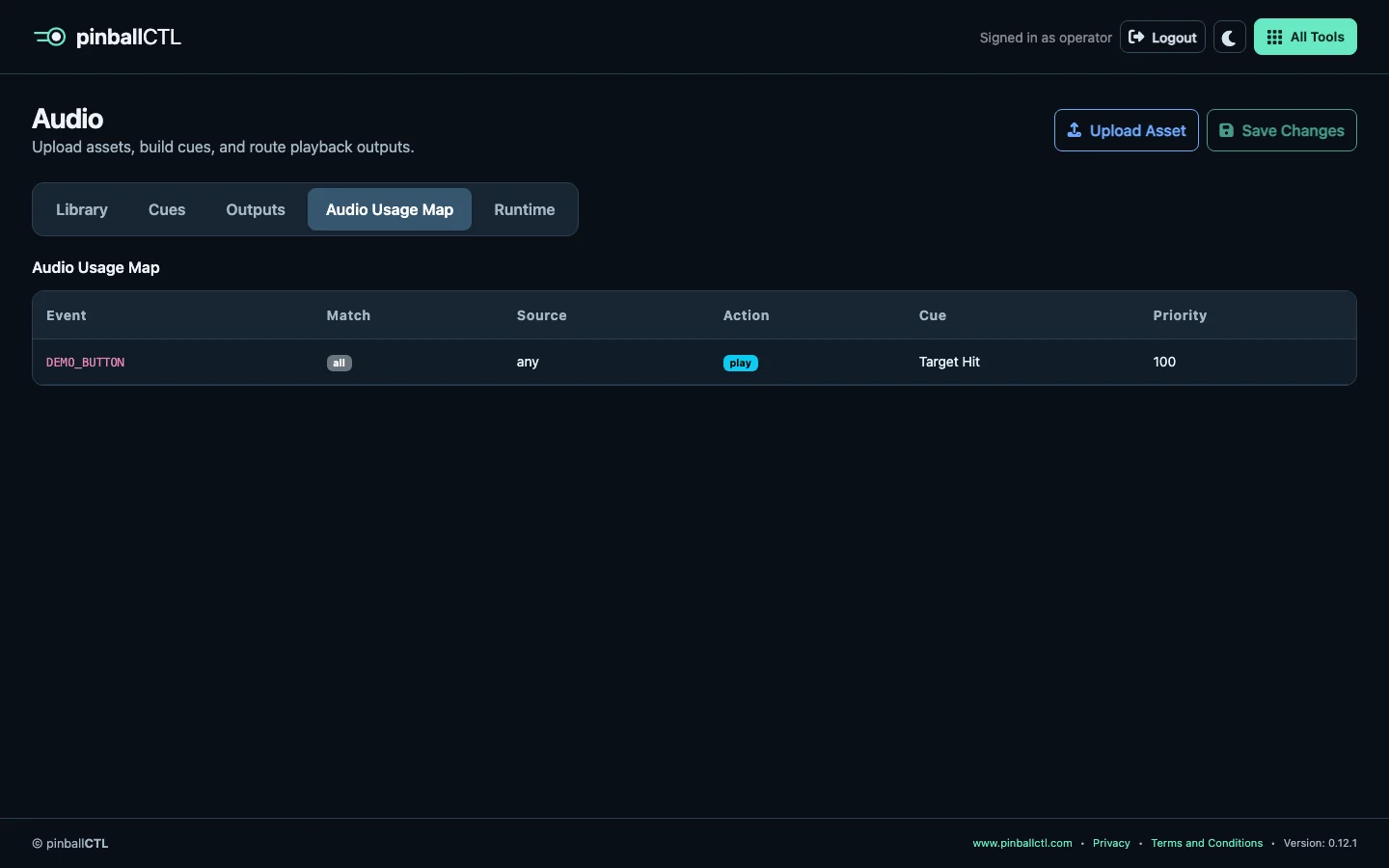
This read-only tab shows where assets and cues are used. Check it before removing or duplicating an asset, or use it to trace an event-to-cue mapping. The Pi’s event flow can play the same cue from several places, with the cue’s playback settings managed in Audio.