Service Log
Record work done on the machine, such as a repair or inspection. Use the filters to find a previous entry when a fault comes back.
Before you start
Have the maintenance details and any appropriate attachments ready. Avoid personal or secret information in records intended for sharing.
Record a service entry
-
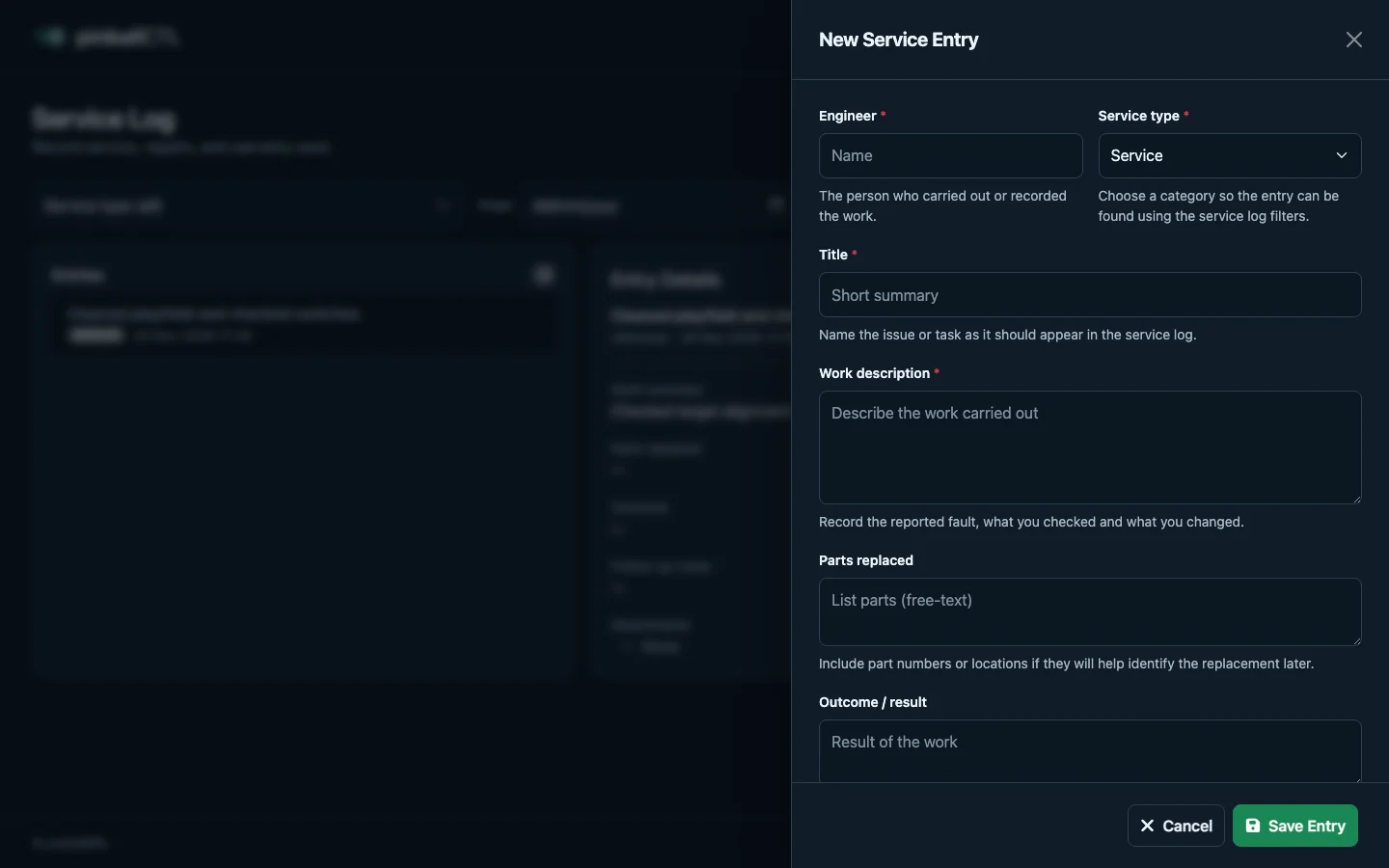
Choose New Entry and enter the required engineer/operator, service type, title and work description. Expected: the entry describes a specific maintenance action.
-
Add parts, outcome, follow-up and relevant attachments, then Save Entry. Expected: the entry appears in the list and its details can be reopened.
-
Use type/date filters to find it, or open Entry settings to correct it. Expected: the saved record reflects what actually happened, including incomplete follow-up.
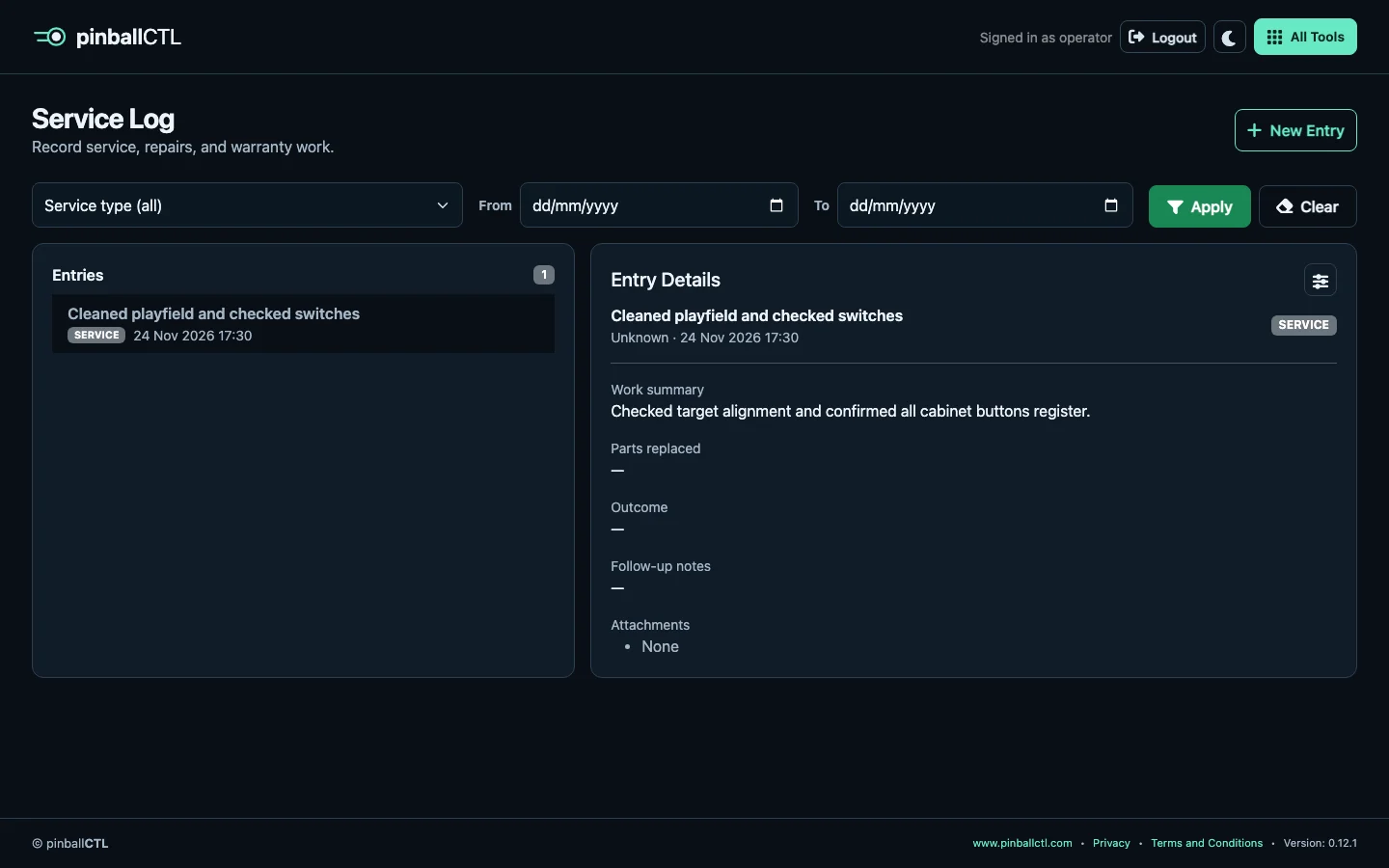
- Filters select the history. 2. The list selects a record. 3. Entry settings opens the editor without confusing service history with live runtime logs.
Check the result
The Dashboard's Machine card shows the dates when the latest service and repair were logged, along with the total number of Service Log entries.
Record the installed application revision and firmware version when the work involves an update. Distinguish a completed test from a test still required.
Safety: Disconnect power before physical service. A service note is not an interlock or proof that a replaced coil/driver is safe.
Troubleshooting
If a record is missing, clear filters and check save feedback. For an attachment failure, check allowed type/count and service write permissions; preserve the original file.
Related guides
Next: Logs, Backup / Restore, Hardware.
List, filters and entry editor
Find an entry
Choose a service type such as Service, Repair, Recall or Warranty, or enter a From and To date. Select Apply to update the list or Clear to reset the filters. The list on the left shows the result count. Select an entry to see its title, type, work summary, parts, outcome, follow-up and attachments on the right.
Add or edit an entry
Select New Entry to open the editor on the right. Select an existing entry and choose Entry settings to open the same editor for that record. Engineer, Service type, Title and Work description are required. Record any parts replaced, the outcome and follow-up notes. Add up to five supporting files in PNG, JPG, PDF or DOCX format.
Select Save Entry to keep the changes or Cancel to leave the editor. For a cleaning log, record who did the work and when to check again. For a repair, capture the replaced part ID and test result, and attach a photo or invoice if useful.
Related Features
Entry editor