
Settings
Settings holds the project name, application login, firmware source, and reporting preferences.
Before you start
Sign in with permission to change installation settings. Know how to recover access before changing credentials or networking.
Change and verify a preference
-
Open Settings and choose Project, Access, Firmware or Reporting.
-
Edit the required value. Leave the password blank to preserve it, or enter a new password to replace it. Expected: Save Changes becomes available when an edit exists.
-
Choose Save Changes and read the result. Reopen the tab to verify the saved value; for credentials, verify a fresh login. Expected: the intended preference persists.
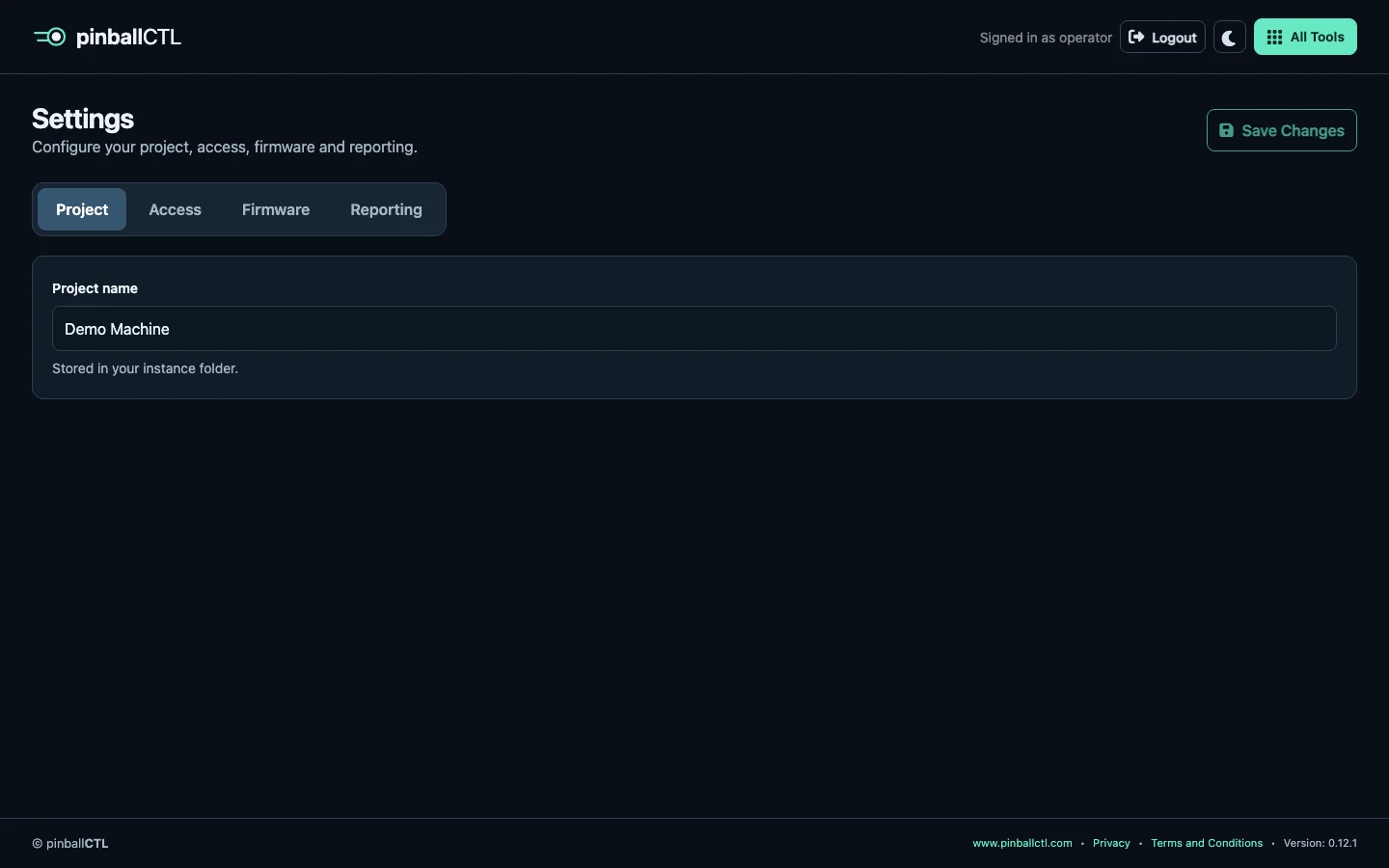
Choose a tab to edit its settings, then use Save Changes in the page header.
Check the result
Pinball CTL and the Pi’s operating system each have their own sign-in credentials.
Safety: Keep credentials out of screenshots and user-authored project text. Do not expose the HTTP interface on an untrusted network without transport protection.
Troubleshooting
If Save Changes is disabled, check whether a value actually changed. For a failed save, preserve the reported error and check service access to its data directory. For lost access, inspect configured environment/saved credentials rather than resetting arbitrary files.
Related guides
Settings tabs
Project
Use Project name to give your project a recognisable name. The app stores the name in its instance folder.
Access
Set the Admin username for signing in to Pinball CTL. To change the password, enter a new Admin password and save. Leave the field blank to keep the current password. Sign-in credentials stay on this installation.
Firmware
Use Remote firmware URL to set the default manifest that the firmware tools read. This setting applies to the installation. Download versions in Firmware and apply them to the controller in ESPLink.
Reporting
Set Log level to Normal (INFO) for important status messages and errors, Debug (DEBUG) for detailed traffic, or Verbose (VERBOSE) for full event traffic.
Choose GBP, USD, EUR or JPY in the Currency field.
Save changes
Choose Save Changes in the page header after editing a value. The button is disabled when there are no changes or a save is in progress. The browser remembers the last Settings tab you opened.