
Firmware
Use Firmware to find and download ESP32-S3 firmware images before applying them in ESPLink. Pinball CTL publishes firmware images and a version manifest as separate assets alongside the application package on GitHub Releases. The page shows images already saved on the Pi and versions available from the selected firmware source.
If you maintain your own builds, host the images and their versions.json manifest. Use Custom URL to load that manifest, or set it as the default in Settings → Firmware. Check that the image matches your controller and application revision before downloading or flashing it.
Before you start
Know the exact controller model, application revision and intended firmware source. Use a trusted manifest and perform updates outside gameplay with output power removed.
Choose the correct firmware image
-
Open Firmware and choose Default to load the configured source automatically. For another source, choose Custom URL, enter a trusted manifest URL and select Load. The page shows the available versions or reports a fetch error.
-
Read the version notes and check the source and status. Confirm that the image matches your board and application revision before selecting it, even if it has the Latest badge.
-
If the version is marked Remote, select Download to save it on the Pi. Once the status changes to Downloaded, it is ready to select in ESPLink.
-
Open ESPLink and confirm the intended device. If systemd manages the bridge, run
pinballctl service stop bridgebefore applying the local version andpinballctl service start bridgeafter the upload succeeds. Watch the console and then verify live identity and version after reconnect.
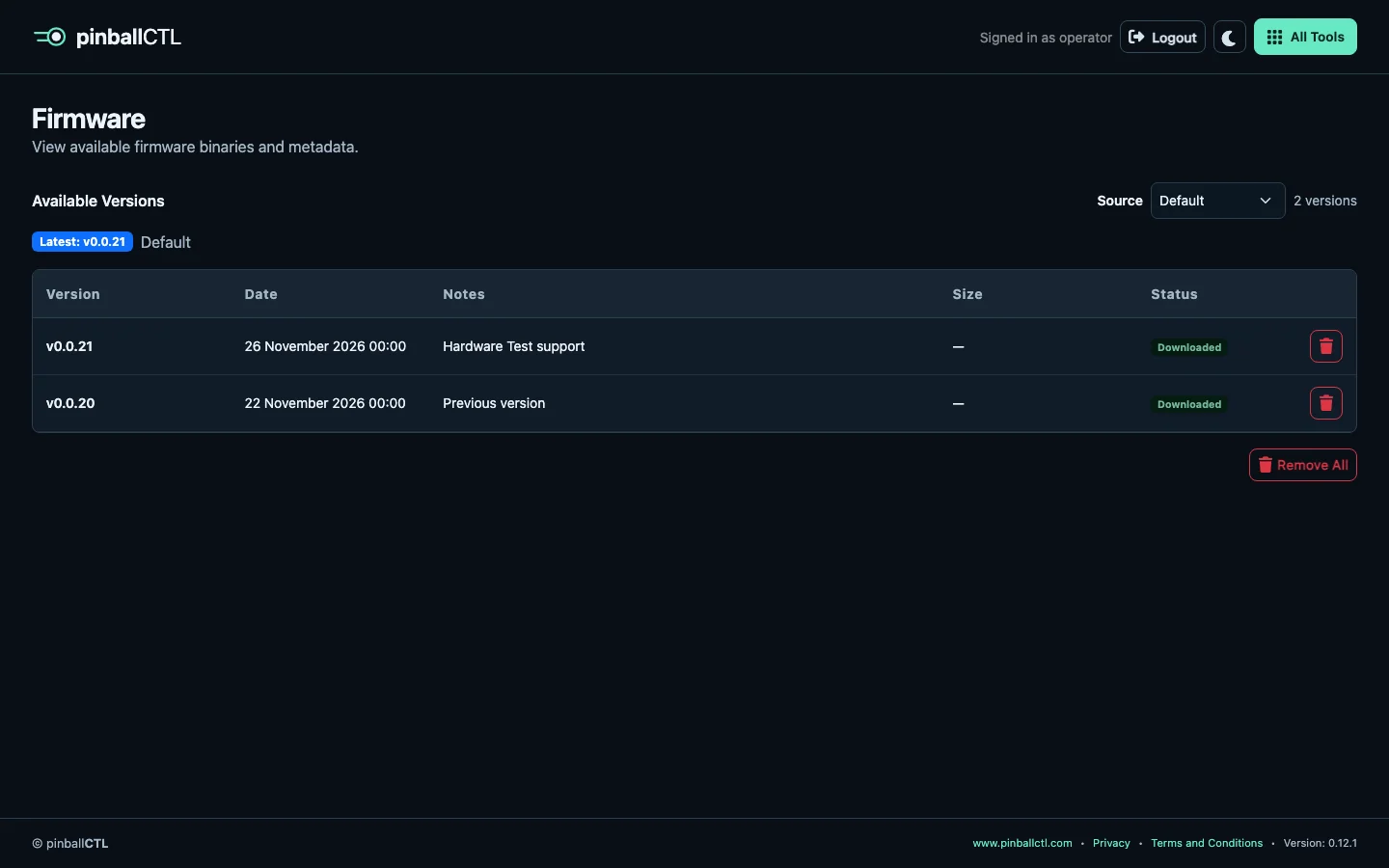
- Source selects the manifest. 2. Version notes describe the image. 3. Downloaded status means locally cached, not installed on the ESP.
Check the result
Record the firmware version shown in ESPLink after flashing. Remove clears the downloaded file from the Pi.
Safety: Do not interrupt flashing or apply a binary for another board. Firmware updates are maintenance operations, not a way to clear a fault during a game.
Troubleshooting
If the list is empty, check source/network and fetch errors. If download succeeds but the device version is unchanged, inspect ESPLink apply results; downloading alone never updates the ESP.
Related guides
Next: ESPLink, Service Log, Backup / Restore.
Source and version controls
Use the Source selector above the versions table. Default uses the configured firmware source. Custom URL opens a field for a manifest address and a Load button to fetch it. Above the table, you can see the active source, the version count and the Latest badge.
The table combines locally saved versions with entries from the selected source. Each row shows the version, date, notes, size and status, with the newest builds listed first. Dates use UK formatting and sizes are shown in B, KB or MB. Remote versions have a Download button. Downloaded versions are already on the Pi and have a Remove action for that local copy.
Use Remove All below the table to clear the firmware copies stored in the local library. The version currently installed on the ESP stays in place.
Use an official release
Open the Pinball CTL release that matches your application version and find its firmware manifest link. Load that link with Custom URL, or use Default if you’ve already configured it as the default source. Review the version notes, download the image for your board and apply it in ESPLink.