
Lighting
Configure fixtures before creating scenes. Use Stage to build and preview the scene, then Runtime to check what is playing.
Before you start
Save the hardware mapping and check fixture identity/type. Use a safe lighting power/driver arrangement; keep coil power off during scene tests.
Set up a fixture and preview a scene
-
Open Fixtures and verify the intended LEDs/strips, pixel counts and layout. Expected: the scene will address the right fixtures rather than a guessed device.
-
Open Stage → Add Scene and configure its name, cast, pattern/timeline, duration and end behaviour. Expected: a small explicit effect with a known stop/repeat policy.
-
Preview and scrub the scene; inspect its cast scope. Expected: only the intended virtual fixtures change. Preview cannot certify electrical wiring.
-
Choose Save Changes, compile/sync through the supported header workflow and inspect the result. Expected: saved authored data and deployed status are clear.
-
Add a Lighting Play Scene action to a safe test rule, save/review sync and trigger its observed input once. Expected: the saved effect runs and stops/repeats according to its settings.
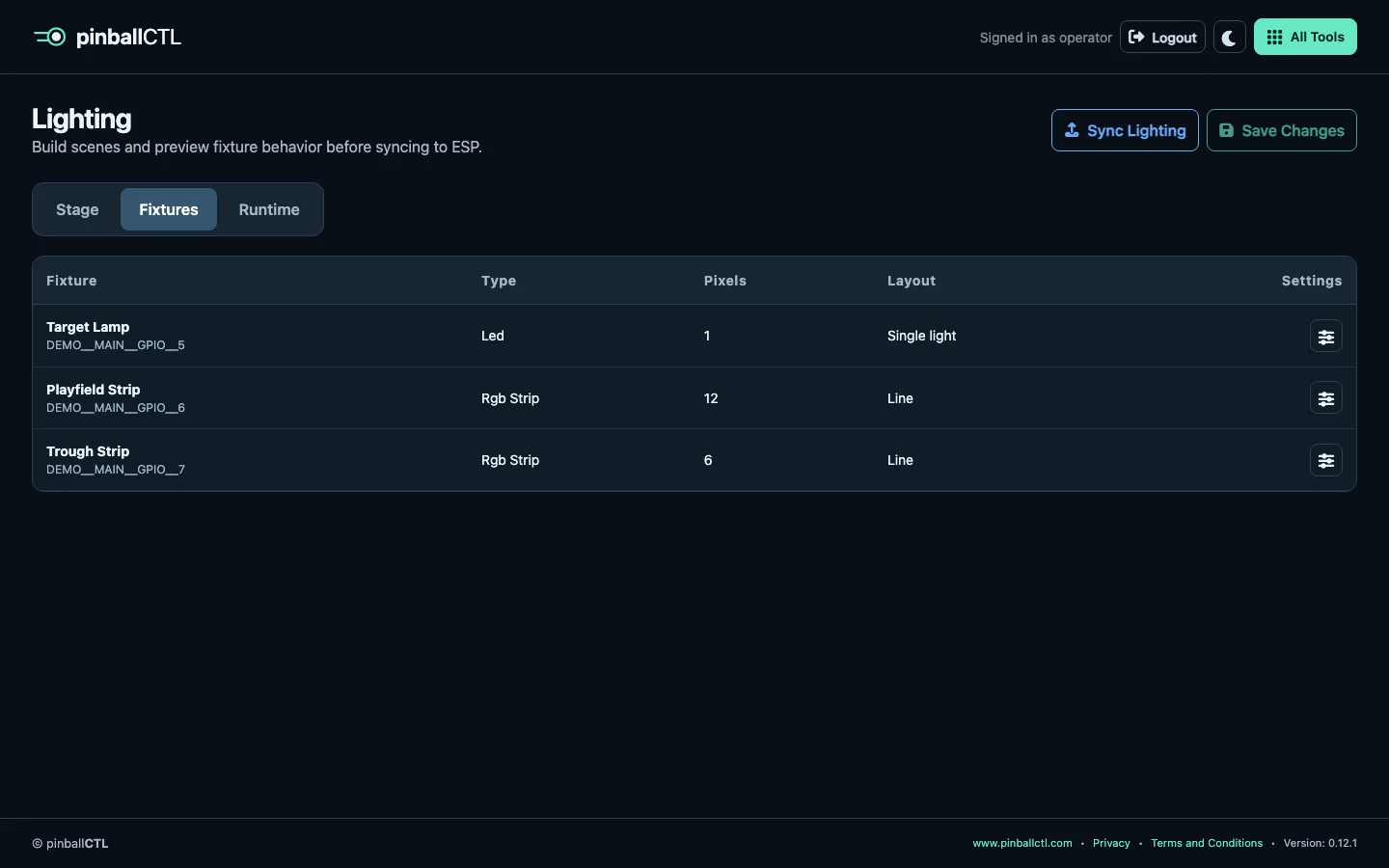
- Fixtures identifies the light targets. 2. Stage authors the scene. 3. Save/sync and Runtime show the deployment/playback path.
Check the result
Keep scene names descriptive and check cast scope before adding priority/blending or multiple overlays. A scene preview and a deployed ESP effect are different validation steps.
Safety: Use appropriate supplies/drivers and brightness/current limits for the actual fixtures. Flashing effects can be uncomfortable; use low intensity and a short preview when testing.
Troubleshooting
For a missing effect, check fixture identity, cast, selected scene, saved state and sync errors. For a scene that never stops, inspect end behaviour and active overlays before adding another trigger.
Related guides
Next: Hardware, Rules, Playfield Live View.
Tabs and playback controls
Fixtures Tab
[screenshot-feature-lighting-fixtures.webp]
Fixtures lists available lighting hardware from the saved mapping. Select a fixture’s sliders button to open its editor. Set the default colour for a single LED, or configure an RGB strip’s pixel count, length and layout. These details help you confirm which fixtures a scene’s cast targets.
Stage Tab
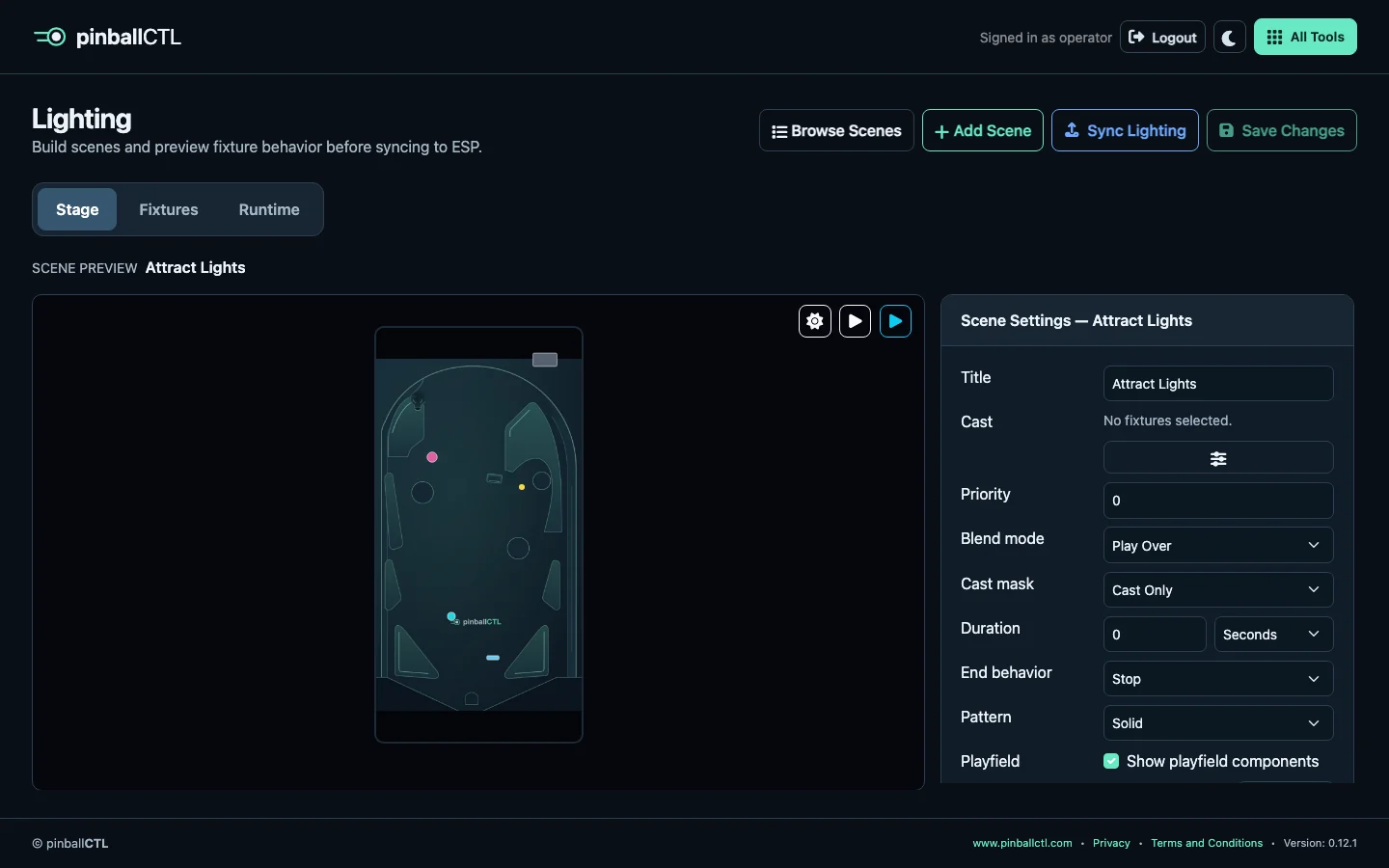
Use Browse Scenes to select a scene or Add Scene to create one. The preview sits beside Scene Settings on desktop, and pixel controls appear when you select a fixture or light. Draft edits remain local to the editor until you select Save Changes.
In Scene Settings, name the scene, select a pattern and choose its cast. Set the duration in seconds, minutes or frames, and choose an end behaviour such as Stop, Repeat or Bounce. Set priority and blend mode when several scenes may run together.
Select a fixture in Cast to locate it and open its controls. A strip selection begins at pixel 0. Click a pixel to select it, drag a box to select several, or hold Shift and click to add or remove individual pixels. For a preset pattern, click near a pixel on a line-layout strip to select the strip, or drag from there to move it. This also works just outside the playfield outline.
Runtime Tab
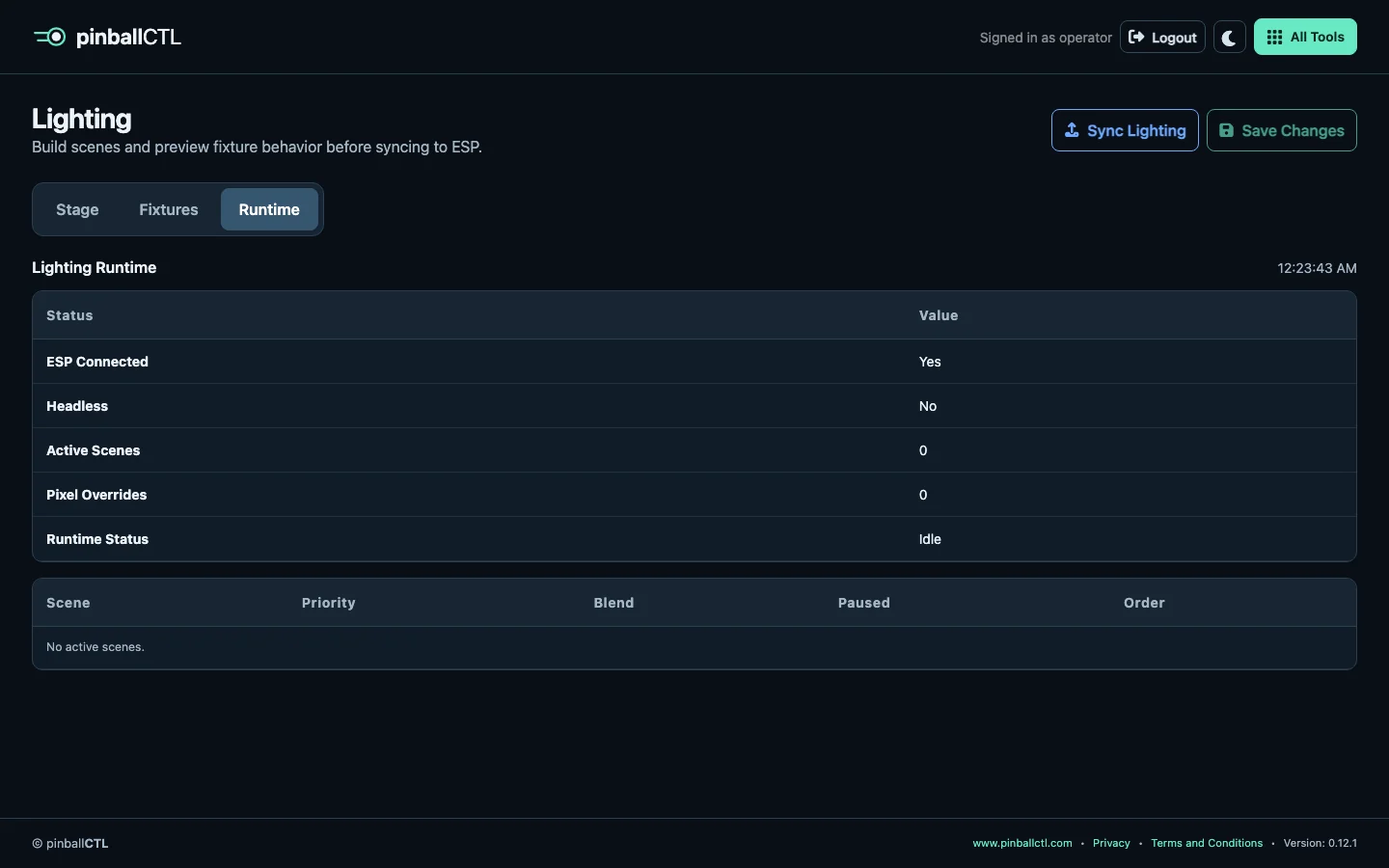
Runtime shows the ESP connection and which synced scenes are playing. Check each scene’s priority, blend mode, paused state and order, and look for pixel overrides that may be holding specific LEDs.
Layering and Scene Overlays (Simple Explanation)
Scenes such as Game Mode or Bonus can play above a background scene such as Attract. Stop Lower ends the lower scene. Pause Lower lets it resume when the top scene ends. Play Over keeps both running.
A direct pixel command such as LIGHT_PIXELS_SET holds the affected lights at the requested state. Releasing the override returns control to the scene.
Top Actions
Use Play and Stop to preview the selected scene locally. The preview follows the compiled output. Run selected scene on ESP starts or stops the selected scene on hardware. All Lights On/Off helps you locate fixtures and toggles back to the normal preview.
Save Changes saves the lighting configuration on the Pi. Sync Lighting compiles and queues it for deployment to the ESP. The sync button stays muted while checking status or when both revisions match. A green outline indicates that the revisions differ and need syncing.
Custom Timeline
Choose Custom Timeline to control the colour and on/off state of each pixel frame by frame. Use the scrubber or frame-step controls to navigate, use the clear-frame action to reset the selected frame, and use the marker pins to locate tags.
Timeline Tags
Manage frame tags in the tag dialog. Each tag must be unique within its scene and use up to 64 lowercase letters, digits, underscores or hyphens. In a Rule’s Apply Lighting Scene action, choose Tag in Start at to start from a named frame.
Save and Sync Workflow
- Build or edit the scene in Stage.
- Check that the cast targets the intended hardware in Fixtures.
- Select Save Changes, then Sync Lighting.
- Open Runtime to confirm the ESP’s playback state.
Pattern Reference
| Pattern | What It Looks Like | Options |
|---|---|---|
solidSolid | A steady colour fill across the selected cast. | Colour, Brightness |
pulsePulse | All selected lights pulse brighter and dimmer together. | Colour, Brightness, PeriodMs |
rainbowRainbow | A flowing rainbow cycle moving across fixtures. | Brightness, Speed, Segments, Saturation |
alternatingAlternating | Alternates odd/even pixels between Colour 1 and Colour 2. | Brightness, SwitchMs, Colour 1, Colour 2 |
chaseChase | A moving block of light that travels along strips. | Colour, Brightness, Speed, Width |
waveWave | A directional wave band sweeping across the playfield. | Colour, Brightness, Speed, Direction, ColourMode, Band, Hold |
rainbow_gradientRainbow Gradient | A smooth rainbow gradient drift over time. | Brightness, Speed, Spread, Saturation |
sparkleSparkle | Random twinkles that pop on and off. | Colour, Brightness, Density, MinOnMs, MaxOnMs, Seed |
strobeStrobe | Fast flashing strobe effect. | Colour, Brightness, RateHz, DutyCycle |
breathBreath | A soft inhale/exhale fade effect. | Colour, Brightness, PeriodMs, MinIntensity, MaxIntensity |
fade_in_outFade In Out | Classic full-scene fade in and fade out. | Colour, Brightness, PeriodMs, MinBrightness, MaxBrightness |
fade_staggerFade Stagger | Fade pattern with per-light phase offsets. | Colour, Brightness, PeriodMs, MinBrightness, MaxBrightness, PhaseOffset, Seed |
color_wipeColor Wipe | Colour wipes from one side/direction to the other. | Colour, Brightness, StepMs, Direction, ClearAfter |
theater_chaseTheater Chase | Marquee-style dotted chase pattern. | Colour, Brightness, Speed, Spacing, Tail |
scannerScanner | A back-and-forth scanner beam. | Colour, Brightness, Speed, Width, Bounce |
twinkle_fadeTwinkle Fade | Twinkles that rise and fade smoothly. | Colour, Brightness, Density, RiseMs, FallMs, Seed |
fireFire | Heat-like flicker fire simulation. | Brightness, Speed, Cooling, Sparking, Seed |
meteor_rainMeteor Rain | Comet/meteor streaks with trailing fade. | Colour, Brightness, Speed, TailLength, Decay, Bounce |
pingPing | A pulse expanding from an origin point. | Colour, Brightness, Speed, Thickness, Falloff, Origin |
radarRadar | A rotating sweep beam like a radar arm. | Colour, Brightness, Speed, SweepDeg, Tail |
rippleRipple | Concentric ripple rings radiating outward. | Colour, Brightness, Speed, Rings, Thickness, Falloff |
chevronChevron | Angled chevron sweep pattern. | Colour, Brightness, Speed, Direction, SpreadDeg, Length, Thickness, Tail |
spiralSpiral | A rotating spiral movement around an origin. | Colour, Brightness, Speed, Turns, Thickness, Direction, Origin |
lightningLightning | Irregular lightning-style flashes and branches. | Colour, Brightness, Speed, Density, Width, Decay, Branches, Seed |
orbitOrbit | A point/beam orbiting around a centre radius. | Colour, Brightness, Speed, Radius, Tail, Direction |
equalizerEqualizer | Bar-like motion inspired by audio equalizers. | Colour, Brightness, Speed, Bands, Smoothing, Direction, Seed |
comet_burstComet Burst | Multiple comet bursts fired from an origin. | Colour, Brightness, Speed, Count, SpreadDeg, Tail, Width, Origin, Seed |
cross_sweepCross Sweep | Cross (plus or X) sweep across the cast. | Colour, Brightness, Speed, Width, Style, Direction |
noise_washNoise Wash | Organic noise shimmer/wash with optional rainbow mode. | Colour, Brightness, Speed, Scale, Contrast, ColourMode |
zone_pulseZone Pulse | Grouped zone pulsing based on fixture IDs. | Colour, Brightness, Speed, GroupBy, PrefixLen, Overlap |
arc_fanArc Fan | Fan of arc beams sweeping from an origin. | Colour, Brightness, Speed, BeamCount, BeamSpreadDeg, BeamWidthDeg, Tail, Origin, Direction |
tickerTicker | Scrolling ticker-style moving window. | Colour, Brightness, Speed, Window, Direction, Text |
morse_beaconMorse Beacon | Flashes a text message in Morse timing. | Colour, Brightness, DotMs, Message |
step_sequenceStep Sequence | User-defined sequence of colour/time/intensity steps. | Steps, Brightness |
dual_scannerDual Scanner | Two scanner beams using two colours. | Colour 1, Colour 2, Brightness, Speed, Trail, Direction |
spark_gapSpark Gap | Spark effect with dynamic dark gaps. | Colour, Brightness, Speed, GapWidth, GapCount, Softness |
impact_burstImpact Burst | Impact ring burst with decay. | Colour, Brightness, Speed, RingWidth, Decay, Origin, Seed |
drift_paletteDrift Palette | Palette-driven colour drift across fixtures. | Palette, Brightness, Speed, Spread |
random_strobe_groupsRandom Strobe Groups | Grouped random strobe bursts. | Colour, Brightness, Speed, GroupCount, Duty, Seed |
heartbeat_doubleHeartbeat Double | Double-beat heartbeat pulse shape. | Colour, Brightness, Speed, SecondLevel, Sharpness |
customCustom Timeline | Timeline-authored frames and markers for exact control. | Brightness, Tween |