
Backup / Restore
Create an archive before changing or transferring a project. Use the restore preview to see which components will be replaced before confirming.
Before you start
Use the current-main build containing Backup / Restore. Stop gameplay, keep sufficient free storage and stop Audio/Media playback before restoration. Keep an off-machine copy of important backups.
Create and download a backup
-
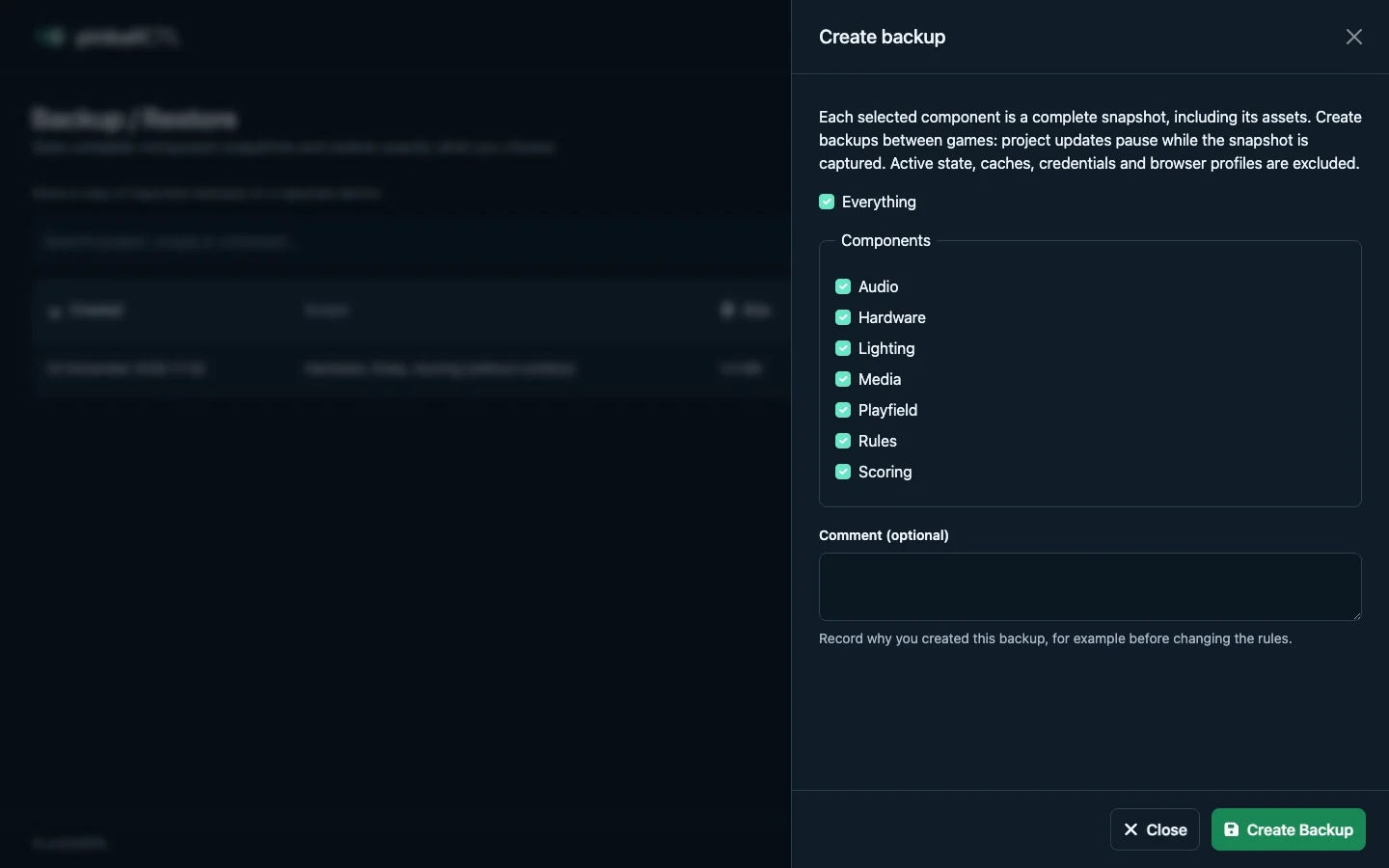
Choose Backup, select Everything or the required components and add a useful comment. Expected: a complete snapshot of each selected component is created, not a delta.
-
Use View to inspect scope/inventory, then Download for an off-machine copy. Expected: the ZIP can be retained independently of the Pi; it is not encrypted.
-
To bring in an existing archive, choose Upload and wait for validation. Expected: the compatible archive is added to the library without restoring it.
-
Choose Restore, select included components and leave Remove all other project content off for a normal selective restore. Preview replacements, deletions and dependency checks. Expected: you know exactly which managed content changes.
-
Stop Audio/Media/display playback. If systemd manages your bridge, run
pinballctl service stop bridgebefore confirming restore. Expected: a recovery snapshot is kept. Review the outcome and configuration before deliberately syncing or arming hardware.
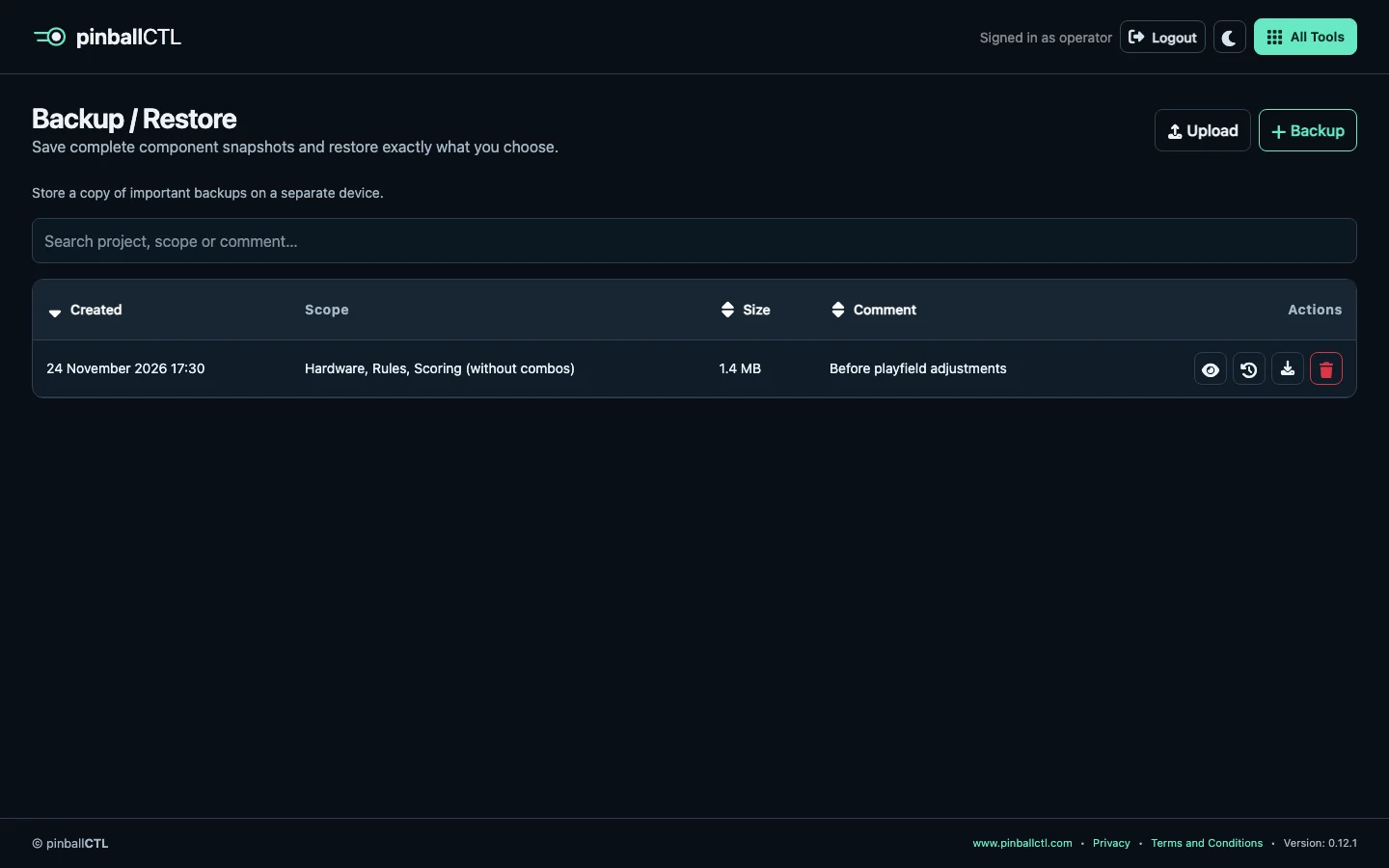
- The library lists snapshot scope and comments. 2. View/Download inspect and export. 3. Restore is a separate destructive replacement workflow; Upload alone changes no live project content.
Check the result
Keep a full Media/Audio baseline and frequent small Rules/Lighting snapshots. Restore a baseline first and then a newer partial archive as separate previewed/confirmed operations.
Safety: Selected components are replaced completely: files/records absent from the snapshot are removed. Remove all other project content additionally clears other managed components and requires REMOVE OTHER CONTENT. The normal confirmation is REPLACE. Review the exact inventory before either action.
Troubleshooting
For a rejected upload, check format, version, inventory and size/checksum errors. For dependency failure, establish the referenced components first. For expired preview, regenerate it. If restore fails, keep the bridge stopped and follow the recovery/journal guidance below; do not resume gameplay until recovery is complete.
Related guides
Next: Settings, Integrity Check, Service Log, Troubleshooting.
Archive and restore controls
Create and upload
Choose Backup to open the standard sidebar. Select Everything or specific components, then create the snapshot. Use Comment to record why you made the backup, such as before changing the rules. Progress is shown while files are captured and compressed. Each chosen component is a complete snapshot, not an incremental delta. A Rules/Lighting snapshot leaves large Media and Audio assets out of the archive.
Create backups between games: project updates pause while a consistent snapshot is captured. SQLite data uses SQLite's backup API rather than copying a live database file. Large full backups can take time and disk space. The current archive limit is 8 GiB compressed and uncompressed, 4 GiB per file, 20,000 entries, with bounded ZIP expansion; configuration JSON is limited to 16 MiB. Keep enough free space for staging, the archive and recovery copies.
Upload accepts a versioned Backup / Restore ZIP, validates its paths, ownership, format, inventory, sizes and checksums, and adds it to the local library. Upload never restores anything. Progress distinguishes upload from archive validation. Project, scope, timestamp and comment come from the uploaded manifest.
Archives are stored outside the instance directory, normally ~/.local/share/pinballctl/backups/ (or the XDG data directory). A service administrator may set PINBALLCTL_BACKUP_DIR to another dedicated directory outside the instance. This location survives application upgrades and is never included recursively in backups. The application/service user needs read/write access. These archives are not encrypted: protect the storage location and downloaded copies.
Export a project and import it elsewhere
In this module, export means creating a backup and choosing Download; import means choosing Upload to add a compatible ZIP to the backup library. Applying that archive is a separate Restore operation.
- On the source installation, open Backup / Restore → Backup. Choose Everything for a complete supported project, or select components for a smaller transfer. Add a comment describing the snapshot.
- Wait for creation to finish. Choose View to check the project, component scope and inventory, then Download. Keep this copy somewhere other than the Pi.
- On the destination installation, create and download a backup of its existing project before replacing anything. Check application compatibility before transferring.
- Choose Upload, select the downloaded ZIP and wait for validation to finish. Inspect it with View. At this point the destination project is unchanged.
- Choose Restore, select the required components and review the replacement/deletion preview. Follow the replacement restore procedure below.
- After restoration, check hardware mappings, display configuration and asset references on the destination. Review and sync configuration to the ESP deliberately before testing hardware.
A partial export does not automatically include every referenced component. For example, rules may depend on lighting, audio or hardware already present at the destination. Include the required components or restore a full baseline first; dependency checks can block a restore whose resulting project has broken references.
Archive format and compatibility
The ZIP contains manifest.json and managed files under payload/<component>/<path>. The manifest records formatVersion, appVersion, project name, creation timestamp, comment, selected components and an inventory of paths, byte sizes and SHA-256 checksums. Upload validates these against the archive contents and component ownership; a generic ZIP of the instance directory is not a supported import.
The validator checks both the backup format and the application version recorded in the archive. If it reports a compatibility error, use a supported application version or migration. Leave the manifest unchanged. Checksums detect content changes but do not encrypt the archive or establish who created it. Only restore archives from a source you trust.
If an upload or restore is rejected
For an incompatible format, use a supported versioned Backup / Restore archive. Legacy Settings exports need manual migration. For an inventory, path, size or checksum error, keep the original and transfer it again. Keep rejected archive contents out of the live instance directory.
If the report identifies broken dependencies, include the referenced components or establish a compatible baseline before previewing again. An expired or changed preview also needs a fresh preview and another review of the replacement inventory. If playback is still running, stop Audio and Media or display playback before retrying.
What a component owns
| Component | Complete snapshot content |
|---|---|
| Rules | Rules files, compiled artifacts and persistent SQLite flags/counters; volatile logs and authoring locks excluded |
| Game Management | Game configuration, durable logical state/credits and trusted replay guards |
| Ball Management | Device/sensor configuration and observation snapshot (invalidated on restore) |
| Scoring | Scoring configuration except Combos, per-player score documents, leaderboard entries and display settings, and game history |
| Combos | The entire combos collection inside the shared Scoring configuration |
| Lighting | Lighting configuration and derived artifacts |
| Hardware | Hardware mapping/discovery and accelerometer calibration |
| Playfield | Layout and playfield images/assets |
| Media | Scene/asset configuration, assets, fonts and uploaded Godot scenes; display records excluded |
| Displays | Display records and their project settings in the shared Media configuration |
| Audio | Cue/asset configuration and audio assets |
| Settings | Public project name, log level and currency only |
| Service | Service history and attachments |
| User wizards | User-installed JSON wizard definitions |
Scoring/Combos and Media/Displays are logical partitions of shared files. Restoring one replaces its records while preserving the unselected sibling records; this is not a merge within a selected component. The replacement preview lists removed logical record IDs as well as file paths. Derived Rules, Hardware and Lighting artifacts are rebuilt before live publication; restore never syncs them to the ESP.
Secret and transient-data policy
Credentials, password hashes, authentication identity, session/signing keys, Wi-Fi credentials, remote firmware-source settings, host executable paths and runtime ports stay local. Public archives exclude those settings, browser profiles/cookies, active playback/game state, command queues, logs, caches, firmware downloads and host/system files. Godot's host binary and port are preserved even when restoring Displays. Comments and arbitrary user-authored project text are not scanned for secrets: do not put credentials in them.
Persistent rule flags and counters are backed up; temporary current-game scoring/playback state is not. A full backup means all supported managed project components above, not a disk image or host operating-system backup. Unknown files outside managed component ownership remain untouched, including when removing other project content.
Replacement restore
- Choose Restore on a backup.
- Select any subset of components included in that backup.
- Keep Remove all other project content off for a normal selective restore.
- Preview the exact replacement/deletion inventory and dependency checks.
- Stop Audio and Media/display playback. Stop the systemd bridge before confirming restore.
- Type REPLACE, then choose Restore.
Every selected component is replaced completely. Current files or records belonging to that component that are absent from its snapshot are removed. There is no merge mode. Unselected components are unchanged by default. Restoring Rules from a full backup does not replace Media, Audio or Lighting.
The optional Remove all other project content checkbox is destructive and off by default. It additionally clears every other supported managed component. The preview identifies those deletions; confirmation requires typing REMOVE OTHER CONTENT. Backups, protected settings, browser/host files and system installation remain outside this managed deletion scope. If the resulting project would contain broken references, the operation is blocked rather than silently producing an invalid project.
Full baseline plus frequent partial snapshots
Keep an occasional Everything backup with your large Media/Audio library, and take frequent small Rules + Lighting snapshots. Restore the full backup first. Once it completes, select Restore on a newer partial backup and restore its components. Each archive is previewed, confirmed and restored separately.
The component selector groups scoring configuration, score history and combos under Scoring. Older archives containing only one scoring partition remain supported and explicitly show Scoring (without combos) or Scoring (combos only).
Maintenance, recovery and limits
In manual mode, Restore automatically stops a running bridge, including offline reconnect loops, and restarts it after successful publication using its previous serial port and baud rate. Startup settings must be identifiable before anything is stopped. An already stopped bridge stays stopped. With systemd, run pinballctl service stop bridge before restoring and pinballctl service start bridge after reviewing a successful restore. Concurrent restore operations cannot manage the bridge simultaneously.
Use the existing Audio/Media runtime controls to stop playback before restoring. Restore never arms coils or syncs configuration to the ESP. Review configuration and sync deliberately afterwards; existing ESP arming, watchdog and coil safety gates continue to apply. Other running web/runtime services may still need a reload.
If restore fails, the bridge stays stopped so recovery can finish safely. If the restore succeeds but bridge restart fails, the error explicitly says the data was restored, includes the recovery backup reference, and asks for a manual bridge start. An interrupted web worker or machine cannot automatically resume this lifecycle: finish recovery and start the bridge manually. Physical Pi/ESP service lifecycle and reconnect tests remain required.
Preview tokens expire after 30 minutes. A changed project, archive or selected reference requires a new preview. Restores use a cross-process access barrier, a durable journal and a generation marker that invalidates the selected component caches in each process on its next access; backups and restore progress remain accessible while ordinary project requests wait. An automatic pre-restore recovery backup is saved before live changes. On an ordinary publication error the previous files are restored; the recovery archive remains in the library with an automatic-recovery comment.
If a worker or machine stops during publication, project access is blocked by a recovery marker. Reload the web service, with bridge/playback stopped, to apply pending journal rollback before normal operation. Keep the backup directory and recovery journal available until recovery completes. If storage fails during rollback itself, stop services and preserve the journal for recovery rather than restarting gameplay. Recovery directories can temporarily contain private copies of protected settings; they are under the private backup store and are never downloadable as an archive.
The barrier covers the application, bridge, rule/scoring event handlers and supported media/audio operations in this version. Third-party scripts or older running processes that directly modify instance files do not participate: stop them before snapshot/restore, and deploy/restart all application processes together when upgrading. This is a maintenance workflow, not hot restore during gameplay. Physical Pi/ESP power-loss, filesystem-failure and service-lifecycle tests remain necessary on the target installation; desktop tests cannot verify coil or external-device behaviour.
Legacy unversioned Settings ZIPs are rejected. The retired Settings import/export endpoints return an explicit migration message; they cannot prove component ownership, complete replacement or secret exclusion. Keep those archives, inspect them offline and migrate their supported configuration through the relevant module into a new versioned backup. There is no automatic legacy extraction into a live project.
Game, Ball and Scoring are logical partitions of the shared management database. Restore preserves unselected owner documents. Physical observations become unknown and an interrupted game requires reconciliation; pending commands/output work never replay automatically. Existing trusted credit settlement replay guards remain protected against duplicate credit after an older backup is restored.