
ESPLink
Use ESPLink to check that the Pi is communicating with the ESP32-S3, view bridge and controller status, and see which firmware version is running. You can test the connection, sync the controller’s clock, or reboot the ESP from the same page.
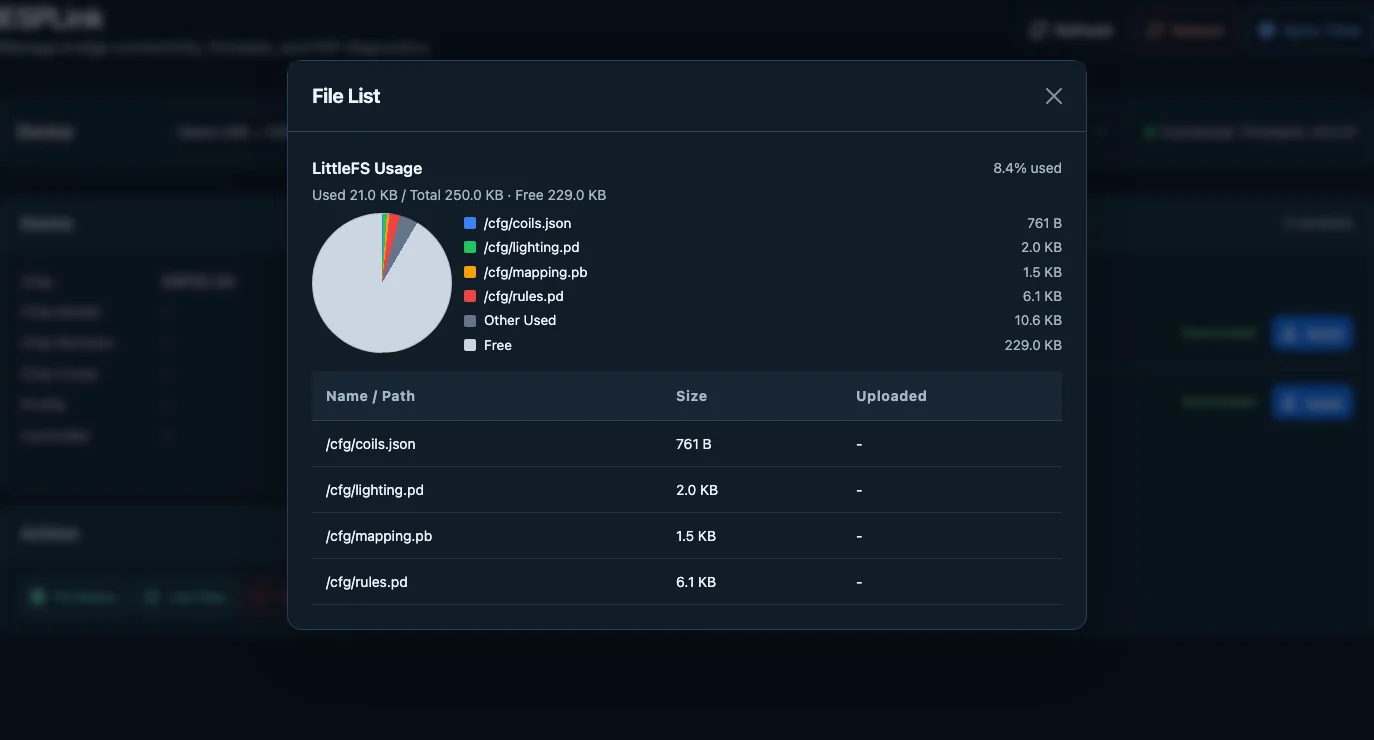
ESPLink also flashes firmware you’ve downloaded through Firmware. Use FS Status to check whether the ESP filesystem is mounted and how much storage is used or free. Use List Files to see what’s stored on the controller.
Before you start
Have the Pi application running, an ESP32-S3 and a USB data cable. Keep output power disconnected for connection, reboot and firmware work.
Check the connected controller
-
Connect the controller and open ESPLink. Refresh/select the intended device where available. Expected: a live connected device and serial port, not cached identity alone.
-
Inspect firmware/chip information and bridge status. Expected: the intended controller is identified; investigate missing or mismatched information before sync.
-
Use Echo Test for a communication check, or FS Status / List Files to inspect supported filesystem results. Expected: a result or explicit error; timeout is not success.
-
If the bridge is stopped, use its Start control in manual mode or
pinballctl service start bridgein systemd mode. Restart only during maintenance. Expected: live status resumes after the controller reconnects. -
For a firmware change, download the intended image through Firmware, then follow local apply and watch the console. Expected: completion followed by reconnected version/identity checks.
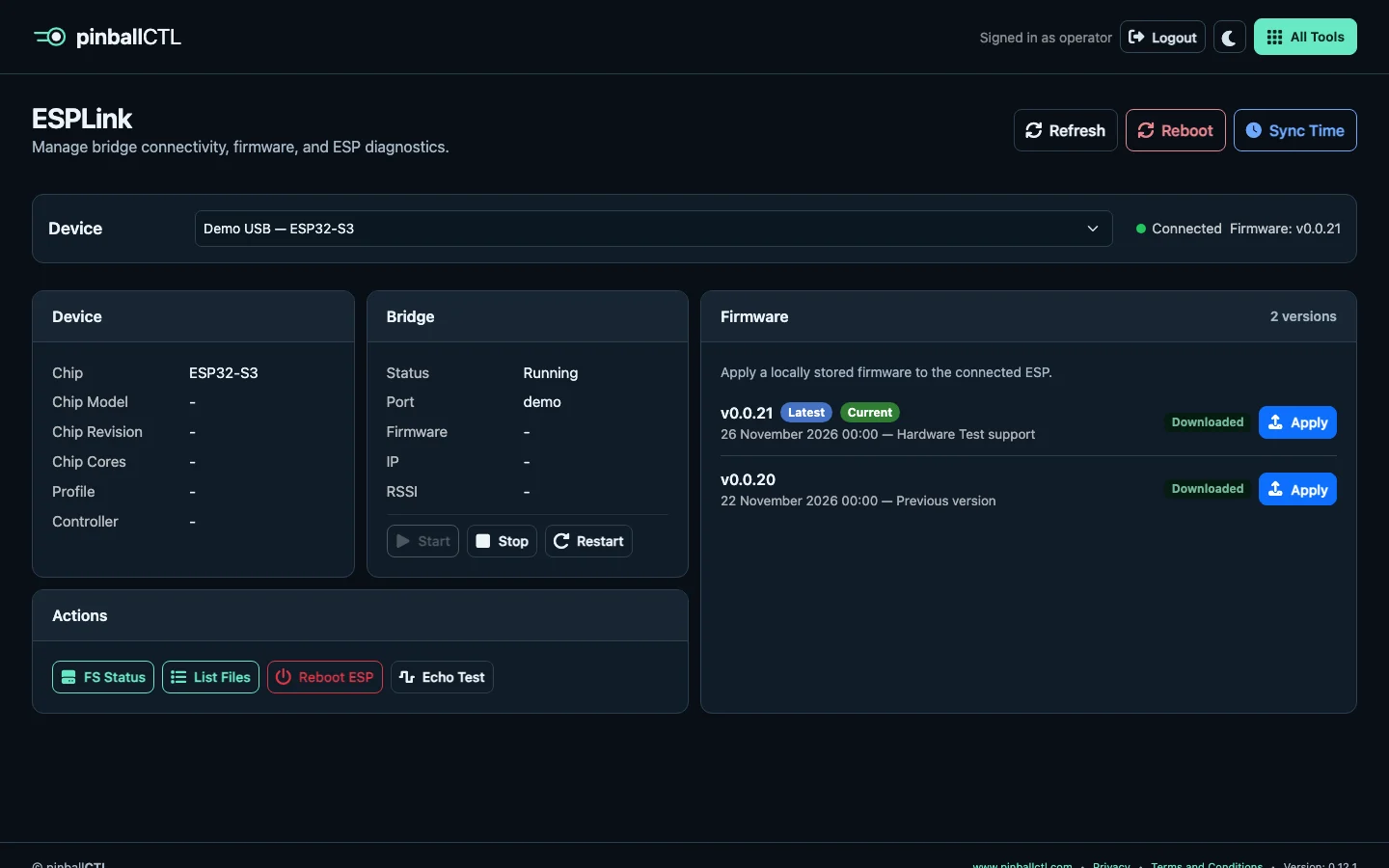
- Connection state establishes live access. 2. Port/chip/version identify the device. 3. Utility results and upload console provide evidence of each operation.
Check the result
Distinguish the bridge process being Running from the ESP actually being Connected. The UI can retain last-known metadata after disconnect.
On a systemd installation, use pinballctl service start bridge, pinballctl service stop bridge and pinballctl service reload bridge for bridge process control.
Safety: Reboot, restart and flashing interrupt runtime. Stop gameplay/playback and remove load power first; do not use reconnects to bypass a latched fault or re-enable requirement.
Troubleshooting
If no device appears, check data cable, port, permissions and bridge logs. If a utility times out, preserve its error and inspect the connection. If flash fails, use the hardware-specific recovery process rather than repeatedly applying an unknown image.
If the upload log reports an invalid reset option and exits with code 2, the flashing tool rejected the command before connecting to the ESP. Use an updated Pinball CTL checkout that supports your installed flashing tool. Reload the app before retrying the upload.
Related guides
Next: Firmware, Hardware, Logs.
Connection and device controls
Select a controller
Use Select device… to choose the ESP you want to work on. The connection indicator and firmware readout appear beside the selector. Refresh checks for devices again. Reboot restarts the selected ESP, and Sync Time sets its clock from the Pi. The available controls depend on whether a device is selected and responding.
If ESPLink shows No ESP devices found, connect the controller by USB. The page refreshes when a device becomes available.
Inspect the device and bridge
The Device card shows the chip model and revision, core count, profile and controller identity. The Bridge card shows whether the bridge is running, the serial port and the firmware version. It also shows the reported IP address and signal strength when available.
In manual mode, use Start, Stop or Restart on the Bridge card. After reconnecting a USB cable, select Refresh and check that the controller reports a live connection, its chip and its firmware version. If the bridge has stopped, start it before checking the connection again.
Inspect storage and test communication
In Actions, use FS Status to check the filesystem and storage use, or List Files to browse the files on the ESP. Echo Test checks whether the controller replies through the bridge. Reboot ESP restarts the controller. Each action opens a dialog with its result.
Apply firmware
The Firmware card lists versions saved on the Pi. Latest marks the newest version in the list, and Current marks the version reported by the controller. Select Apply beside the version you want to flash and follow the progress in the Upload Console. After reconnecting, verify the firmware version before deploying configuration.
Before syncing configuration
Confirm the selected ESP is connected, then check its chip and firmware against the Pi application version and the firmware manifest. Run Echo Test if you need to confirm communication, and use FS Status or List Files if you need to verify storage. Once the device is responding and the versions are compatible, continue with the Hardware, Rules or Lighting sync.
Related Features
Connection status and cached details
USB discovery, a running bridge and a responsive ESP are different states. The connection indicator reports whether the ESP is responding. When communication is lost, previously received device details may remain visible; the page labels the firmware as last known and explains that the details are cached.
If USB is detected but the ESP is not responding, try restarting the bridge. If it still does not reconnect, check the USB connection and reset the ESP.
Filesystem and communication checks
FS Status shows filesystem type, mount status, used/free capacity, a storage usage bar and whether the rules directory is available. Sizes are shown in readable units.
Echo Test sends a communication check through the bridge. The result confirms whether the ESP replied, identifies the device port and explains any failure. This does not activate outputs.