
Wi-Fi
Wi-Fi shows the host’s current wireless connection and lets you update it on supported Linux installations. A network change can disconnect this browser session.
Before you start
Keep local console or Ethernet access available before changing a headless Pi network. The save workflow requires Linux, NetworkManager/nmcli and appropriate service-account permissions.
Change networks and reconnect
-
Open Wi-Fi and read SSID, IP address and connection state. Expected: the current address is available for browser access.
-
For a network change, enter the SSID and personal-network password, then choose Save Changes. Expected: NetworkManager reports activation or an explicit unsupported/permission/connection error.
-
If the browser disconnects, check the Pi locally or over Ethernet and reopen the interface at its current address. Expected: you reconnect to the machine, even if its address changed.
-
On the target Pi, verify the saved connection after reboot before relying on unattended operation. Expected: NetworkManager reconnects using its saved profile.
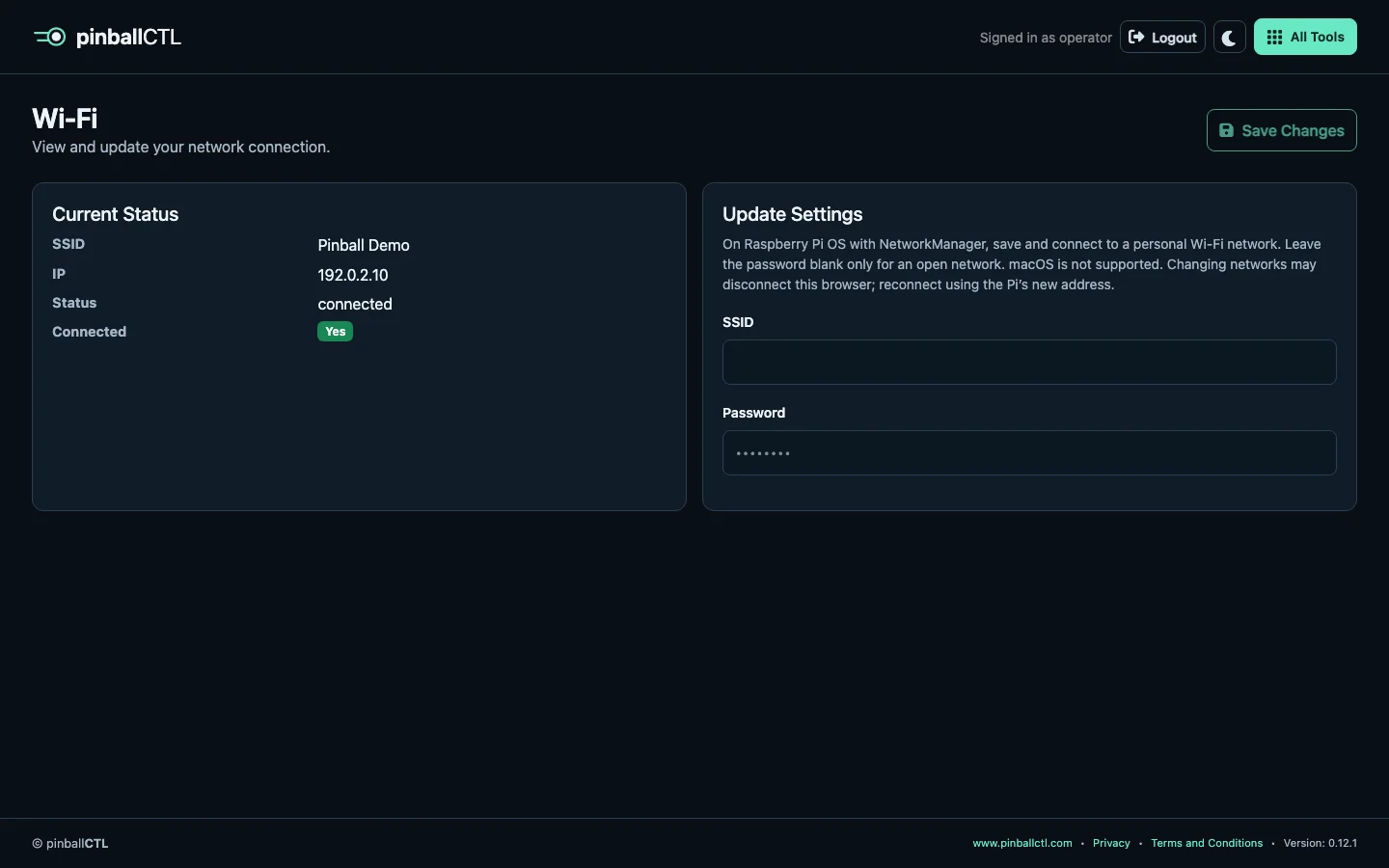
- Status shows the current SSID and address. 2. The form requests a new connection on supported Linux. 3. Reconnect at the new address if access drops.
Check the result
A browser timeout can mean the network changed before the response arrived. Recheck locally before retrying. macOS and systems without nmcli cannot use this form to change networks.
Safety: Use a trusted network or HTTPS when transmitting credentials. Do not remove your only recovery access before testing a new connection.
Troubleshooting
For permission errors, check NetworkManager/Polkit permissions as the application service user. For unsupported enterprise/captive-portal/hidden-network requirements, use the operating system tools. See the detailed limitations below.
Related guides
Next: Detailed Setup, Dashboard, Troubleshooting.
Status and connection fields
Current status
The Current Status card shows the network name (SSID), the Pi’s IP address, the reported connection Status and a Connected badge that reads Yes or No. These readings refresh about every five seconds while any unsaved entries in the form stay in place.
Update the connection
In Update Settings, enter the network name in SSID and its personal-network password in Password. WPA/WPA2 Personal accepts a password of 8–63 characters or a key of 64 hexadecimal digits. Leave Password blank only for an open network. Use the operating system’s network tools for enterprise authentication, captive portals or hidden networks.
Select Save Changes to ask NetworkManager to activate the connection on a supported Linux installation. A spinner appears while the request runs, followed by a success message or an error. Success confirms that NetworkManager activated the connection. Internet access is a separate check. NetworkManager stores the profile for later connections, including after reboot. The form reports an error on macOS and on Linux installations without nmcli.
If the browser drops the connection or times out during the change, check the Pi from its console or over Ethernet and reopen Pinball CTL at the current IP address before retrying. Keep that recovery access available when changing a headless Pi’s Wi-Fi. NetworkManager manages the existing profiles, and a failed activation may require you to reconnect manually.
Service permissions
The account running pinball-web.service needs NetworkManager and its nmcli client, plus NetworkManager/Polkit permission to manage connections and system profiles without an interactive prompt. Run nmcli general permissions as the service account to check its access. A logged-in desktop user may have different permissions. Ask the system administrator to grant the required NetworkManager actions to the service account.
Pinball CTL passes credentials directly to nmcli without a shell and keeps them out of application logs and API responses. A privileged local user may be able to see them while the command runs. NetworkManager stores them in its protected system profile storage. Use a trusted local network or configure HTTPS before sending credentials across an untrusted network.