Ball Management
Ball Management records physical observations and expected movements. Game Management decides whether those observations finish a logical turn. A physical ball inventory and balls per player are separate settings.
Dashboard and setup
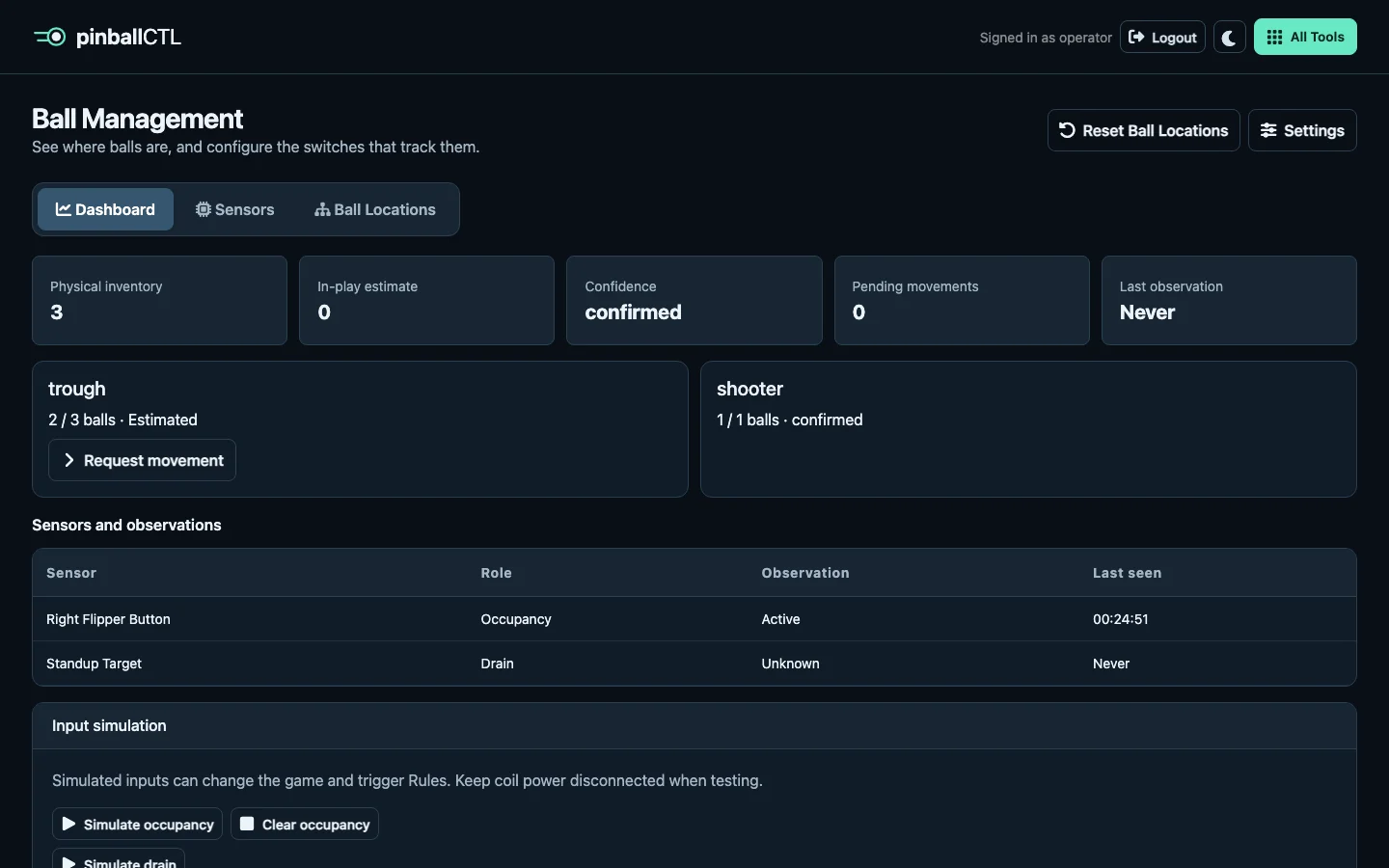
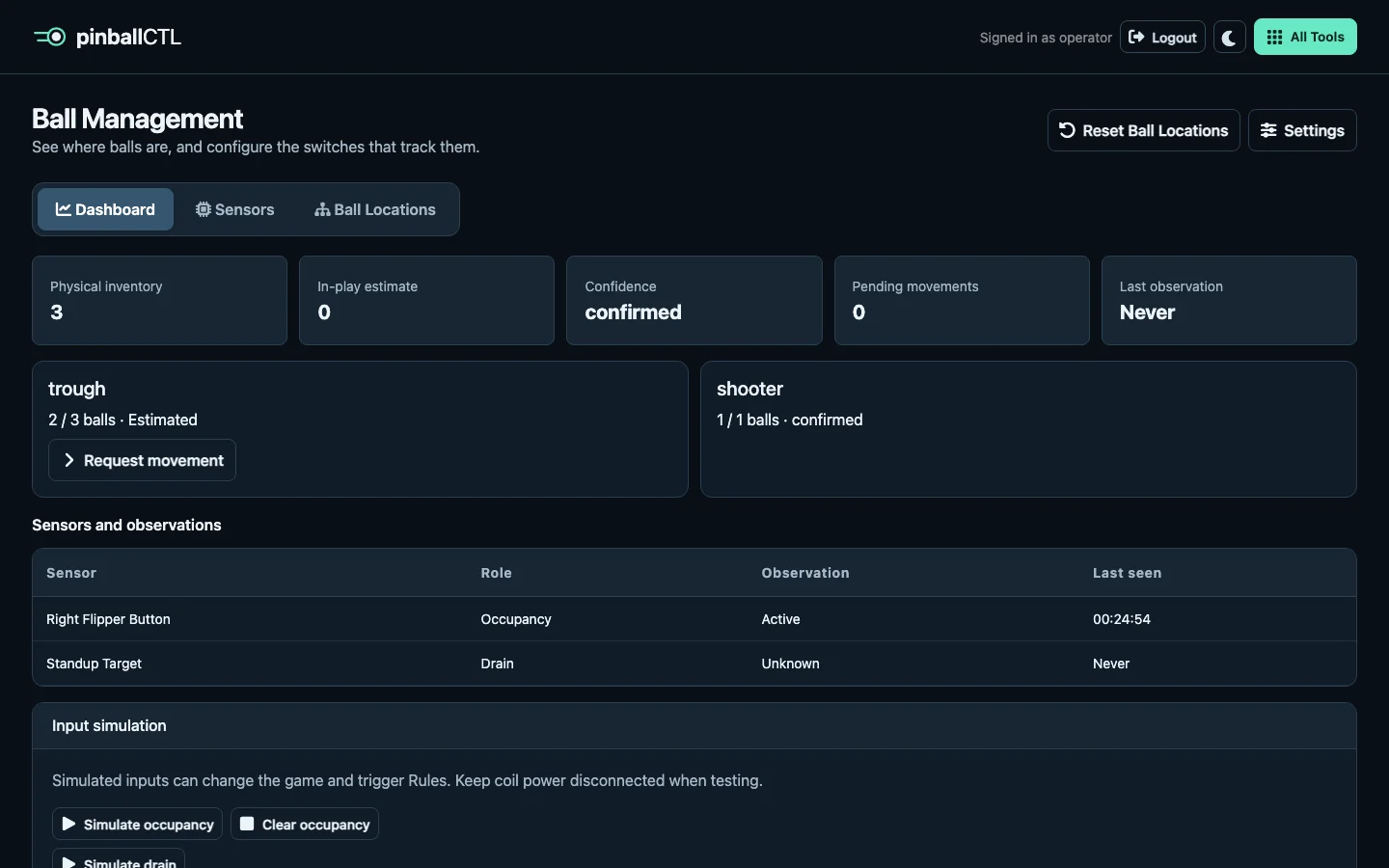
The Dashboard shows live sensor observations, in-play estimates and movement status. View Events opens the Ball Management filter in Logs → Events, including manual resets.
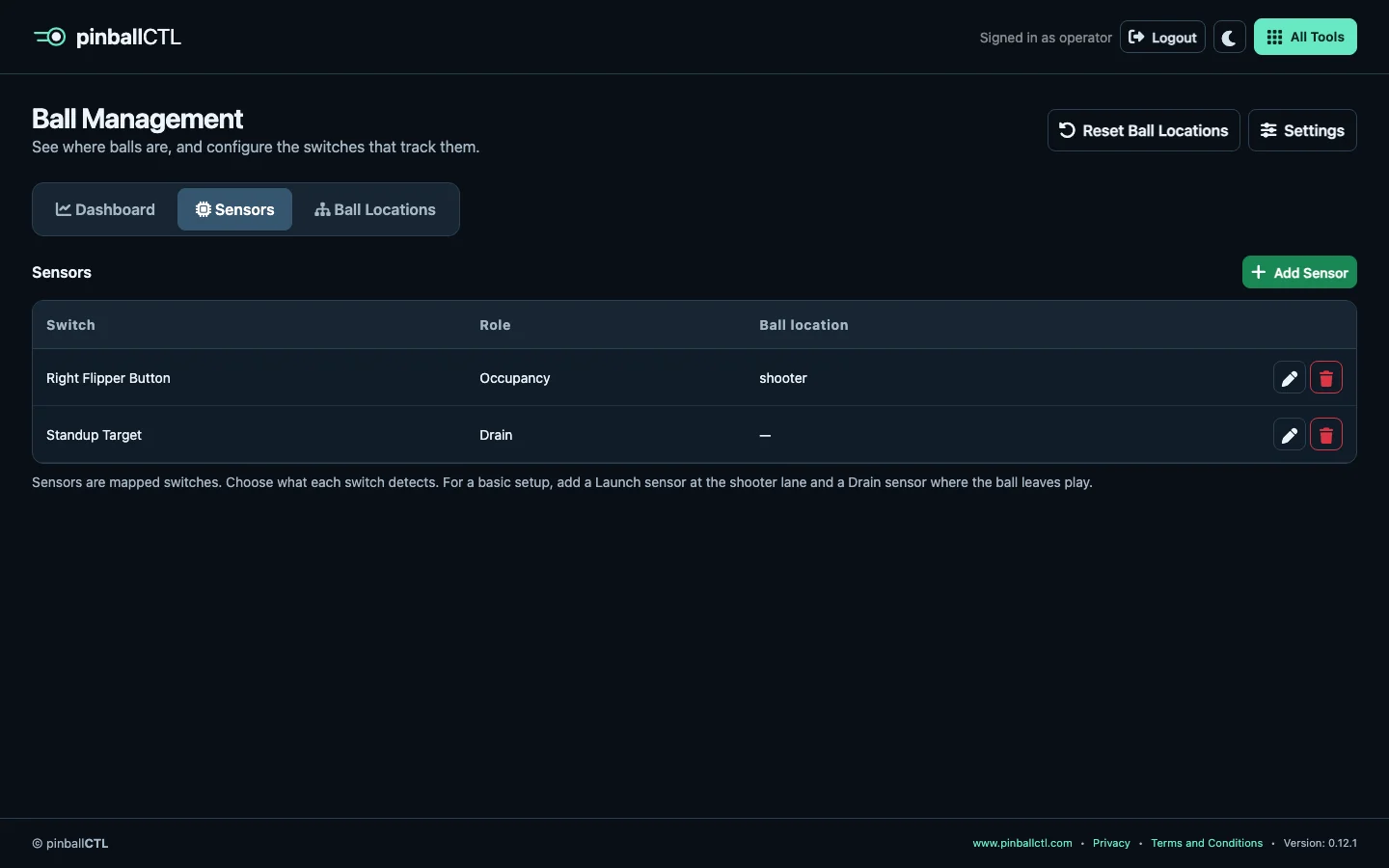
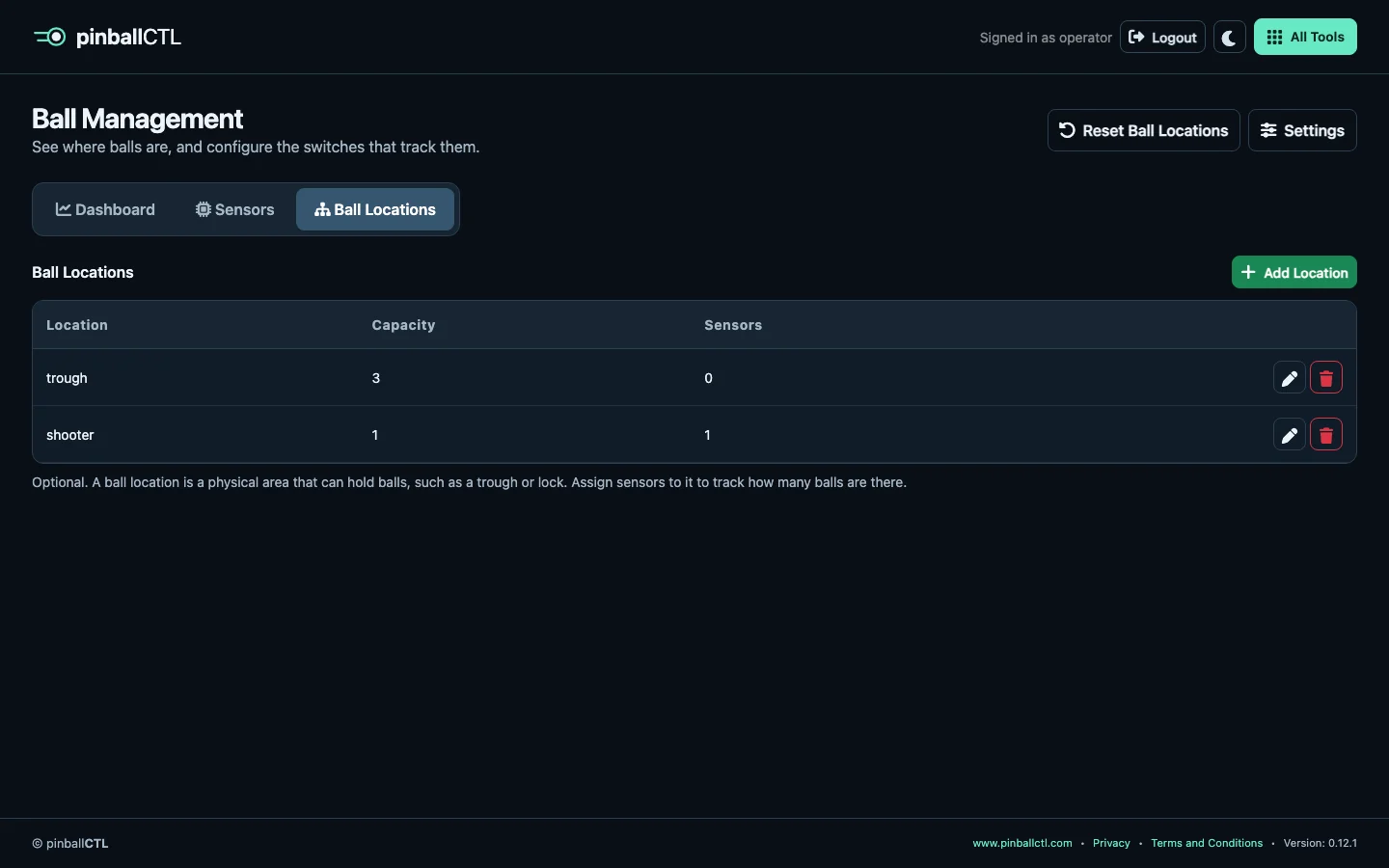
In Sensors, use Add sensor or Edit to configure a mapped switch and what it detects. Ball Locations lists areas monitored by one or more switches, such as a trough or lock. Use Settings to set the machine’s total physical ball count and sensor freshness timeout.
Sensors tab
Ball Locations tab
Minimal machine
In Settings, set the number of physical balls. In Sensors, add the shooter-departure switch as Launch and the drain switch as Drain. Leave Ball location blank for those two switches. Set each switch’s active level and debounce interval. Save while no game is running, then Sync Rules to deploy the sensor watches.
Shooter departure adds one to the in-play estimate. Drain removes one when a corresponding estimate exists. Unknown is never treated as zero. The page shows configured physical inventory, inferred in-play count, confidence, sensor levels, last observations and pending movements. Live View and Playfield also show the published manager summary; Media overlays read the current player, ball and credits from Game Management.
Troughs, locks and other ball locations
Add a location such as Trough and set how many balls it can hold. Edit each trough switch in Sensors and select Trough as its ball location. Use Occupancy for switches that stay active while a ball is parked, or Entrance and Exit for switches that detect a ball passing through. Use Lock to detect a ball entering a lock. A confirmed occupancy count requires an observation from every configured occupancy switch at that location. Entrance and exit observations alone cannot establish an unknown initial count. Counts outside configured capacities require recovery.
Example: three balls, a trough and a lock
Set Physical balls in machine to 3. Add a Trough with capacity 3 and a Ball lock with capacity 1. Map each switch to the role and location below.
| Switch | Role | Ball location |
|---|---|---|
| Shooter departure | Launch | None |
| Playfield drain | Drain | None |
| Trough slots 1, 2 and 3 (one switch per slot) | Occupancy | Trough |
| Lock position (held active while a ball is parked) | Occupancy | Ball lock |
With two trough switches active and the lock switch active, the dashboard can show 2 / 3 in the trough and 1 / 1 in the lock once all four occupancy switches have reported. The lock switch in this example reports a parked ball. Leave release outputs unset while checking the sensors.
Use Movement and release options in the location’s side panel to configure an expected destination, timeout or optional release output.
A requested movement requires active gameplay, fresh confirmed occupancy, a configured destination and no existing movement from that device. Matching destination observations confirm the movement; timeout makes state uncertain and requires recovery. No retry/search sequence fires automatically.
An optional mapped release output and bounded pulse (1–250 ms) can be configured per device. Request movement records the expectation, then the existing bridge/ESP safety path sends one pulse request using a fresh firmware timestamp. ESP arming, stale-command, recovery and coil limits still apply. Missing clock support, rejected commands or uncertain delivery enter recovery. A durable send receipt prevents replay after a crash; an uncertain send may therefore be lost, rather than fired twice. Inspect the machine before deliberately requesting a new movement.
Infer an unsensed trough count
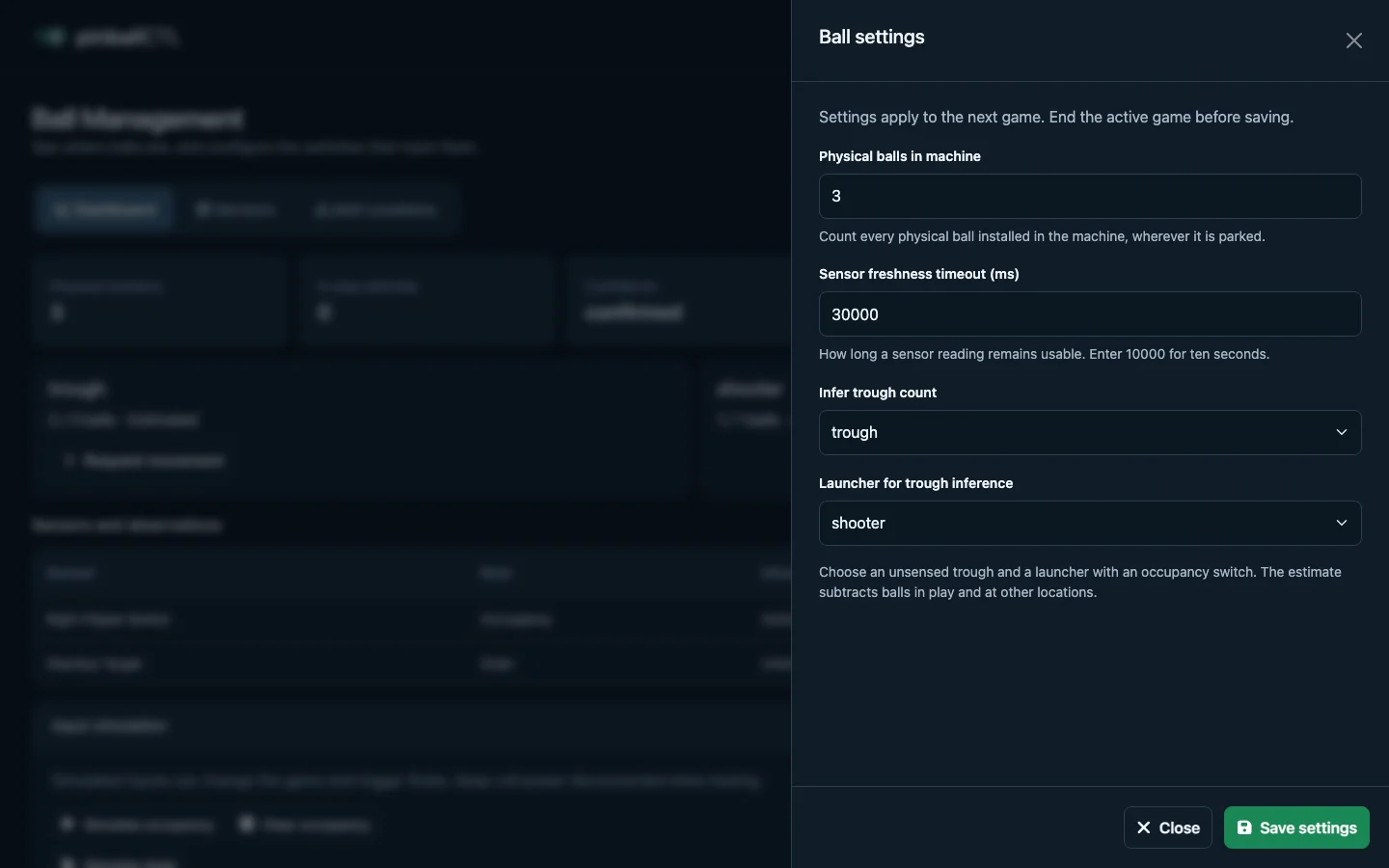
For a simple table, map the playfield entry switch as Launch, the drain passage switch as Drain, and the shooter lane switch as Occupancy on a single-ball launcher location. Create a separate trough location with its real capacity. In Settings, select that trough under Infer trough count, then choose the launcher.
The dashboard subtracts the balls in play and those detected at other locations from the configured physical inventory. With three balls configured, the estimated trough count goes from three to two when the launcher fills. It stays at two as the ball enters play and returns to three when the ball drains.
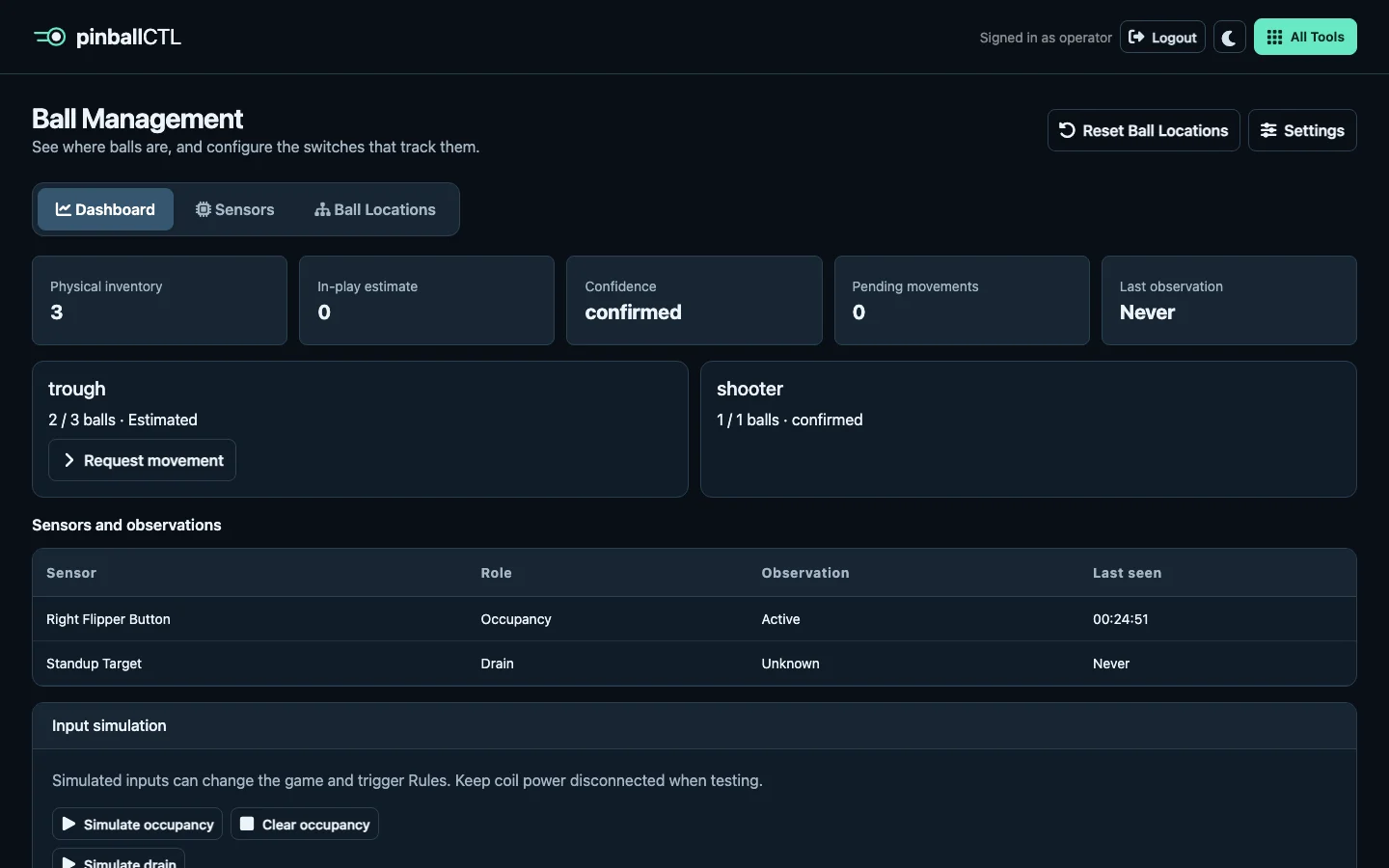
The estimate allows half a second between the launcher switch clearing and the launch switch reporting, in either order. It shows Unknown if the second switch does not report in time, required location readings are missing or stale, or the total falls outside the trough capacity. Once startup settling is over, an idle machine with no in-play estimate is treated as having zero in play for this calculation. A stuck ball can still make an inferred count wrong. Coil release still requires confirmed sensor evidence.
Reset ball locations
While no game is active, select Reset ball locations beside Settings. Inspect the machine, then enter a whole-number count for every configured location, including zero for empty locations. Add locations such as the shooter lane or an under-table catch before counting them. Each count must fit the location's capacity, and the total must match Physical balls in machine.
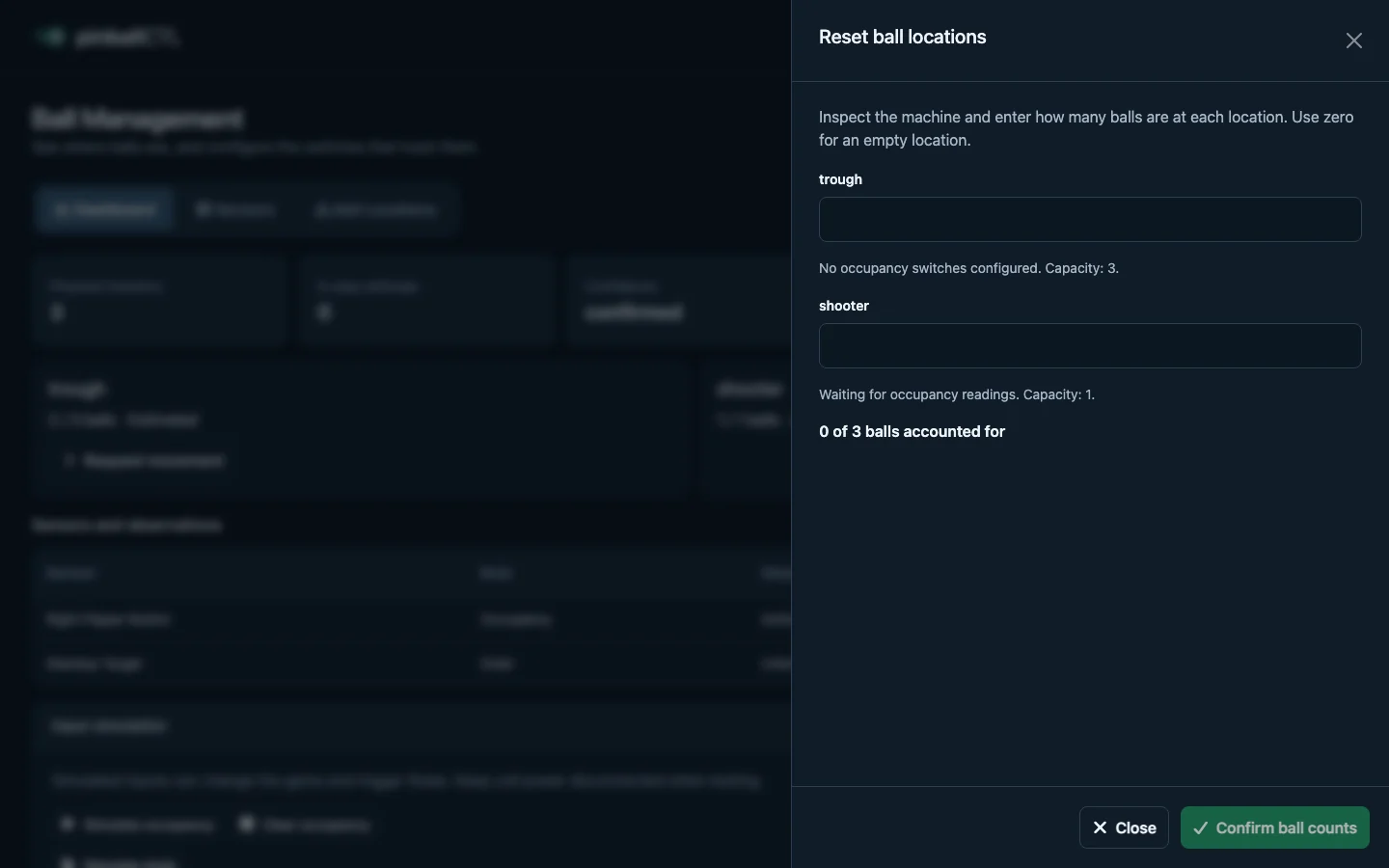
The panel shows fresh occupancy readings alongside the counts. If the available readings contradict your count, review the difference and explicitly confirm that you want to use your numbers. Locations with incomplete readings or no occupancy switches are labelled accordingly. The dashboard shows saved manual counts separately from sensor counts. The reset clears the in-play estimate and pending movements without operating coils. Movement safety continues to require fresh sensor evidence. Manual counts are cleared when a new game starts, the Pi boots, a backup is restored, or the ball configuration changes.
Startup and recovery
After a full Pi boot, the dashboard shows a six-second settling delay. With matching firmware and synced Rules, Ball Management then reads the levels of mapped occupancy switches, including ones already held by a parked ball. A location stays unknown until every configured occupancy switch for it has reported. A drain passage alone cannot confirm trough occupancy. The configured inventory remains a setup value.
After changing a Game or Ball Management input, save the configuration and sync Rules. Rules Sync includes the input watches the ESP uses for sensor events and occupancy readback.
If a ball stops where there is no sensor, inspect the machine and physically return the ball to the trough. For a mechanism with a mapped release coil, use the existing hardware test controls only after inspecting the mechanism. Startup does not fire coils or assume that all configured balls reached the trough.
Input active beyond configured freshness limit means the switch last reported its configured active level and has gone longer than the freshness timeout without a new reading. Check that the switch releases and that Active level matches what the switch reports. Simulated observations are labelled separately. A fresh physical observation clears the warning. If the controller is disconnected, the dashboard shows the last reading as historical and the current level as unknown. With compatible firmware, Ball Management can check for release after reconnecting without counting a new launch.
A movement timeout, impossible drain or capacity mismatch can block an active game. Inspect the sensor readings and physical ball locations before starting another game.
Use Input simulation on either the Game Management or Ball Management dashboard to simulate a configured sensor. Launch and drain send a press and release with one click. Occupancy stays at the simulated level until you choose Clear. For Simulate launch, map a button or switch in Hardware and assign it the Launch role in Ball Management. Simulation uses that mapping without needing the ESP online. Simulated launches and drains can advance the current game. The resulting manager events use the central event system, carry simulated: true, and can trigger Rules that listen for manager events. Hardware switch triggers still require their own input events. Keep coil power disconnected when testing.
These are configurable observations and one-shot controlled movements, not a universal mechanical driver, automatic ball-search engine or arbitrary multiball policy. Mechanism-specific retry/search behaviour remains excluded unless separately designed and safety-tested. Actual Pi/ESP sensors, pulse timing and mechanical release/arrival behaviour require physical validation.