
Scoring
Scoring has three tabs. Base Points awards a fixed amount, Scoring Rules handles repeated hits, and Combos rewards sequences. Verify scores during an active game.
Before you start
Have a known input/event, saved mapping and running Pi runtime. Use a controlled test session and preserve real score history before experiments.
Test a fixed award first
-
Open Base Points and add/edit one row through its Settings sliders panel. Choose Hardware or Event, the observed trigger and a small point value. Expected: the row summary names the intended source and award.
-
Choose Save Changes. Trigger that input/event once in a controlled test and inspect the scoring result/event log. Expected: one matching award in the current game.
-
Only after that works, configure one Scoring Rules progression or Combos sequence. Read its hit count, time window, cap/multiplier and optional emitted event. Expected: its thresholds are explicit and do not duplicate an existing fixed award unintentionally.
-
Save, repeat the required sequence and test the reset/timeout case. Expected: the award occurs at the intended threshold and does not persist into an unrelated sequence.
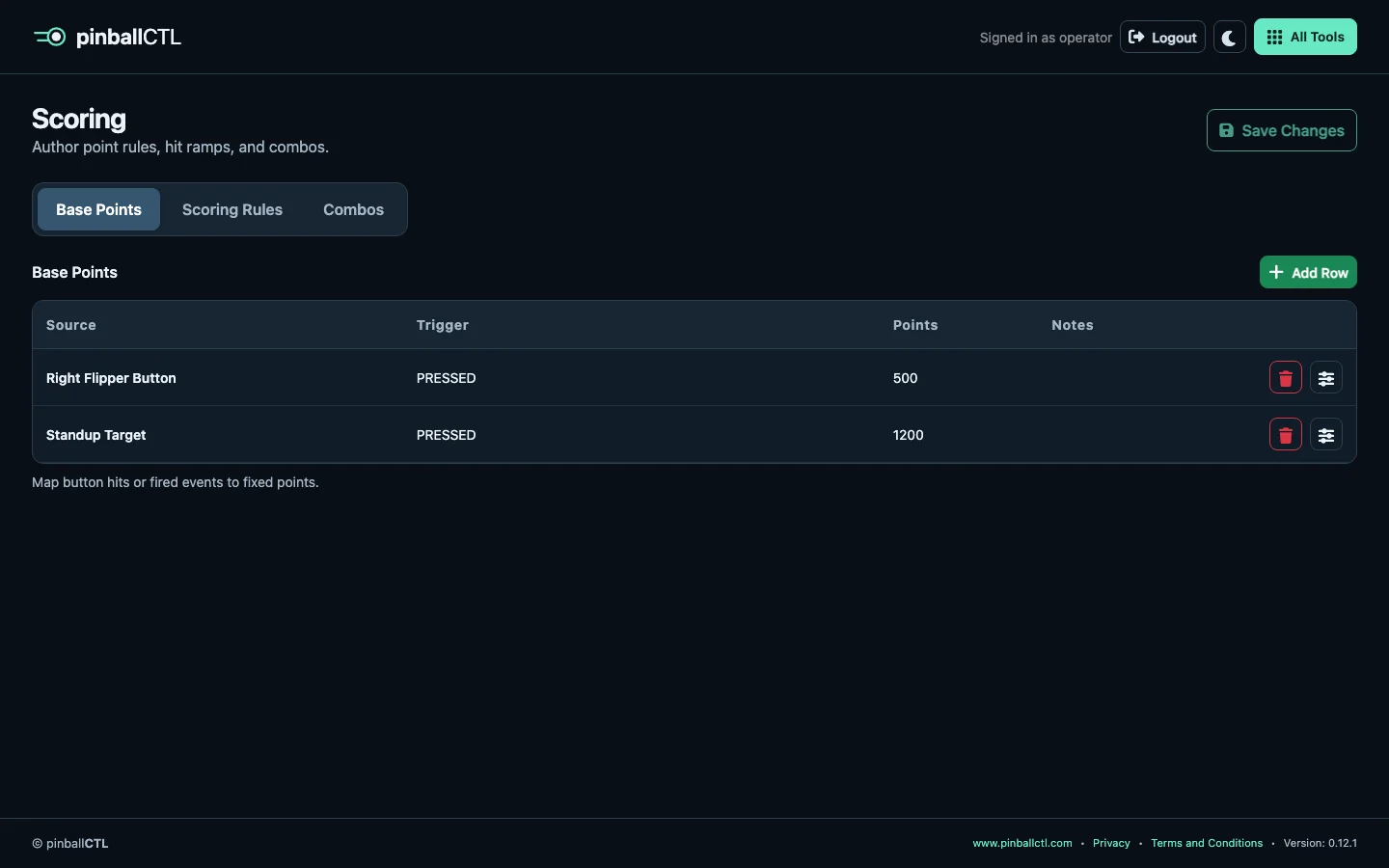
- Base Points defines a direct award. 2. The Settings sliders panel edits a row. 3. Save Changes persists the whole scoring configuration.
Check the result
A reward event from a Wizard needs an explicit Scoring row if it should award points. Inspect both the triggering and emitted event before adding a second matching award.
Safety: Simulated events can activate real Rules as well as scoring. Keep coil power disconnected for authoring tests and back up score/history data before destructive experiments.
Troubleshooting
If no award appears, check exact event/source, saved configuration and runtime/session state. If doubled, inspect overlapping Base Points, progressive rules, combos and emitted events before reducing the point value.
Related guides
Next: Rules, Rules Wizard, Logs.
Scoring tabs and settings panels
Choose the Settings sliders icon at the end of a row in Base Points, Scoring Rules or Combos to open its editor. The table summarises the configuration. Closing the panel keeps your draft, and Save Changes in either the panel or the page header saves the whole scoring configuration.
Base Points Tab
[screenshot-feature-scoring.webp]
Choose Hardware to use a mapped input and its event, or Event to use a named event. Enter the points to award per match and add notes if needed. Use a fixed award for ordinary switch hits or named gameplay events.
Scoring Rules Tab
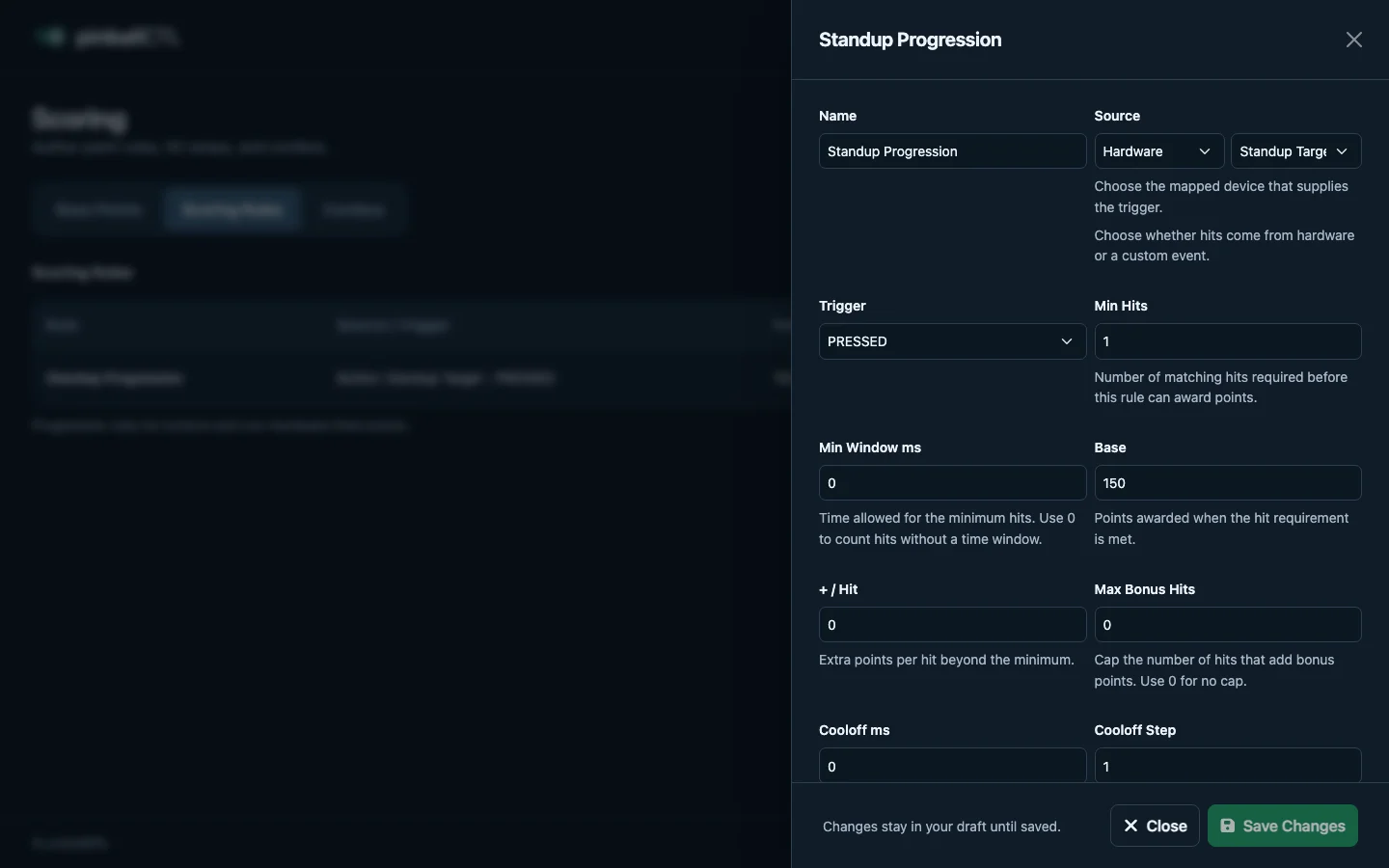
Choose a source and trigger, then set the minimum number of hits. Min Window ms sets how quickly the hits must arrive. Enter 0 to count hits without a time window, or 5000 to require them within five seconds.
Set the base points, points per hit, bonus cap and cooloff. For example, start at 20 points with at least one hit, add 10 points per hit and decay the hit count by one at each 1500 ms cooloff interval. You can also emit a named event when an award matches.
Combos Tab
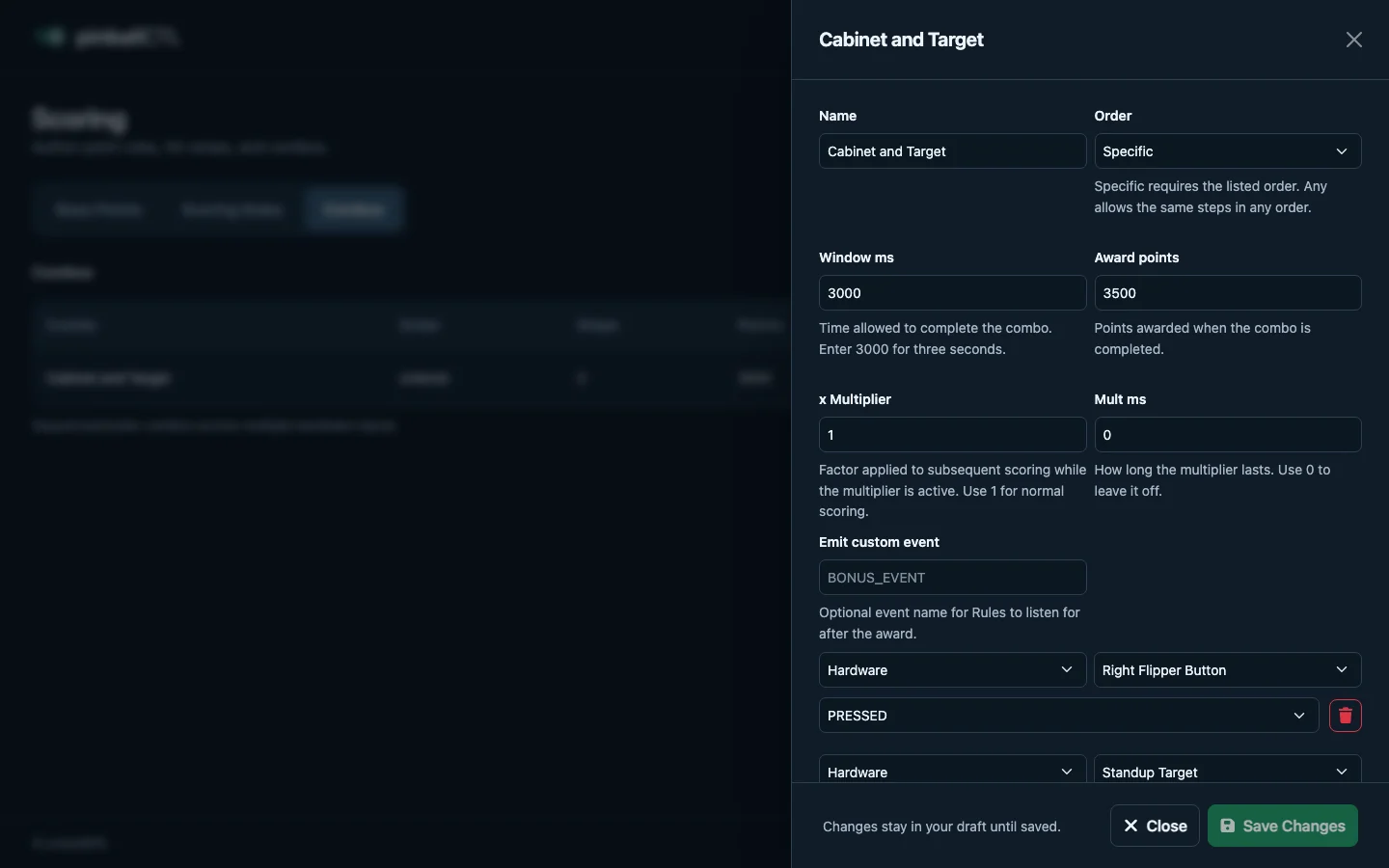
Set whether steps must match in order or can arrive in any order. Each step can use a mapped hardware event or a named event. Set the step time window and points, then add a temporary multiplier or emitted event if needed.
For example, require left lane, right lane and top target in that order. Award 300 points and apply a ×1.5 multiplier for eight seconds.
Save and Runtime Behavior
Save Changes writes the configuration to the instance directory. During play, Scoring listens for matching inputs and awards points in real time. It can respond to events from other modules and emit events for Rules or Lighting, so check both the trigger and any emitted event when testing awards.
Related Pages
Game ownership and per-player state
Game Management owns session lifecycle, credits, logical turns and player changes. Scoring applies this page’s award rules, combo progress and multipliers independently for the committed current player. Game Management asks Scoring to finalise the outgoing turn before advancing. The shared management database stores completed game history and leaderboard entries. Open High Scores to review or edit the leaderboard. Configure the fixed end-of-turn bonus in Game Management settings. Starting or ending a game by manually emitting a result event is no longer supported. See Game Management.