Playfield
Use Playfield to arrange mapped components, test the saved layout in Live View, and inspect game progress in Rules State.
Before you start
Have a saved hardware mapping and, if wanted, a playfield image. Keep outputs disabled before testing keyboard or mouse-triggered events.
Place a mapped component
-
Open Stage and confirm the Components list contains the expected hardware. Expected: your saved mapping supplies the intended devices.
-
Place/select a component and edit its position, size or appearance. Use Auto Layout only when you want it to rearrange the layout. Expected: the selected component is identifiable on the canvas.
-
Where needed, configure a keyboard binding and its key-down/key-up gesture mapping in the inspector. Expected: the two gestures correspond to the intended input behaviour.
-
Choose Save Changes, then select Live View to observe the saved layout. Expected: positions and bindings persist; test one input at a time with output power disconnected.
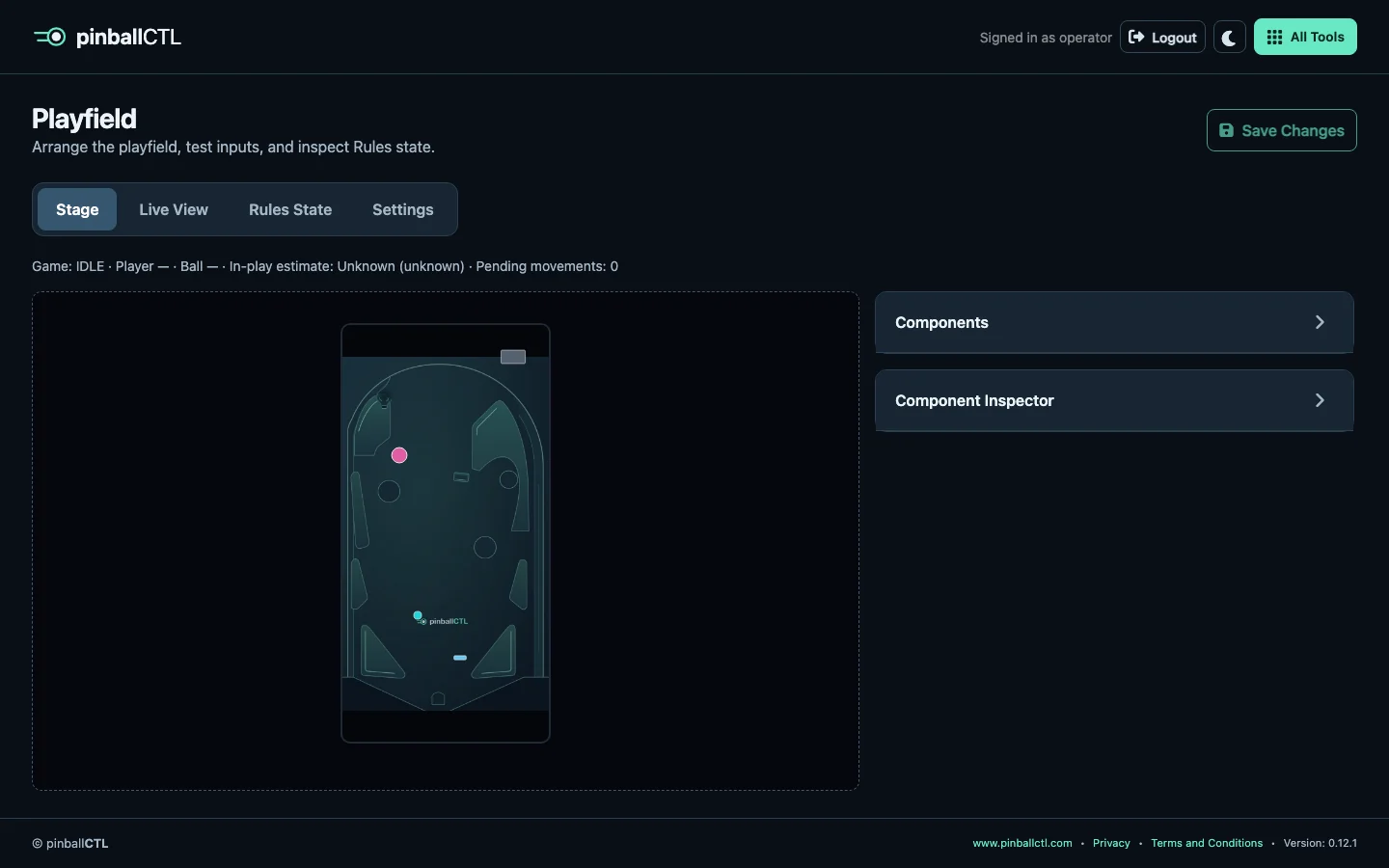
- Components identifies devices. 2. Stage positions them. 3. The selected component inspector edits appearance and bindings; Save Changes persists the arrangement.
Check the result
Save before leaving. Clear Layout changes the authored arrangement; it is not a way to reset hardware or game state.
Safety: Test controls can fire configured events and downstream actions. A drawn solenoid or a simulated press is not electrically isolated by the canvas.
Troubleshooting
If a component is missing, check the hardware list/mapping first. If position or binding disappears, verify save success. If a shortcut does nothing, check focus and the configured gesture before editing a rule.
Related guides
Next: Hardware, Events in Logs.
Stage and layout settings
Stage Tab
[screenshot-feature-layout-stage.webp]
Drag components on the canvas to place them. The selected component is highlighted, and its settings appear in the Component Inspector. Select Save Changes in the page header to keep the arrangement.
Components Card
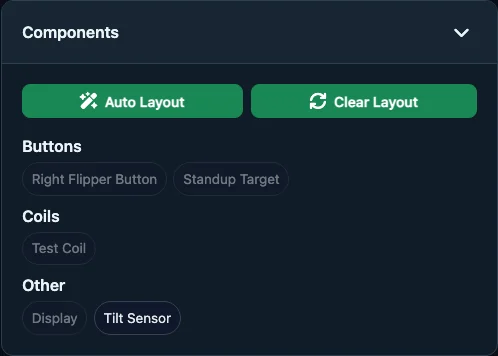
Check the Components card to see the mapped Buttons, LEDs, Solenoids and Other devices available to place. Use Auto Layout to regenerate positions or Clear Layout to reset placement.
Component Inspector
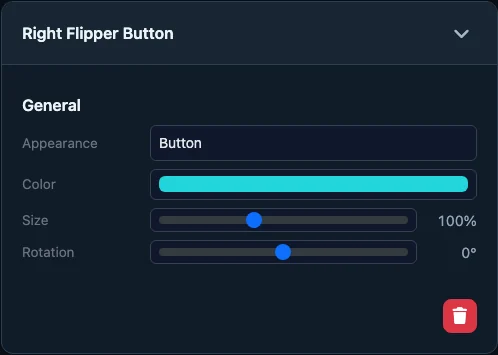
Select a device in Components to open its inspector. Adjust its appearance, colour, rotation or size. Size runs from 10% to 250% in steps of 5%, and Live View uses the saved value.
Use the inspector to capture or remove a shortcut, assign its key-down and key-up gestures, adjust test controls or remove the component from the layout. This example shows the inspector for the Right Flipper Button.
Settings Tab
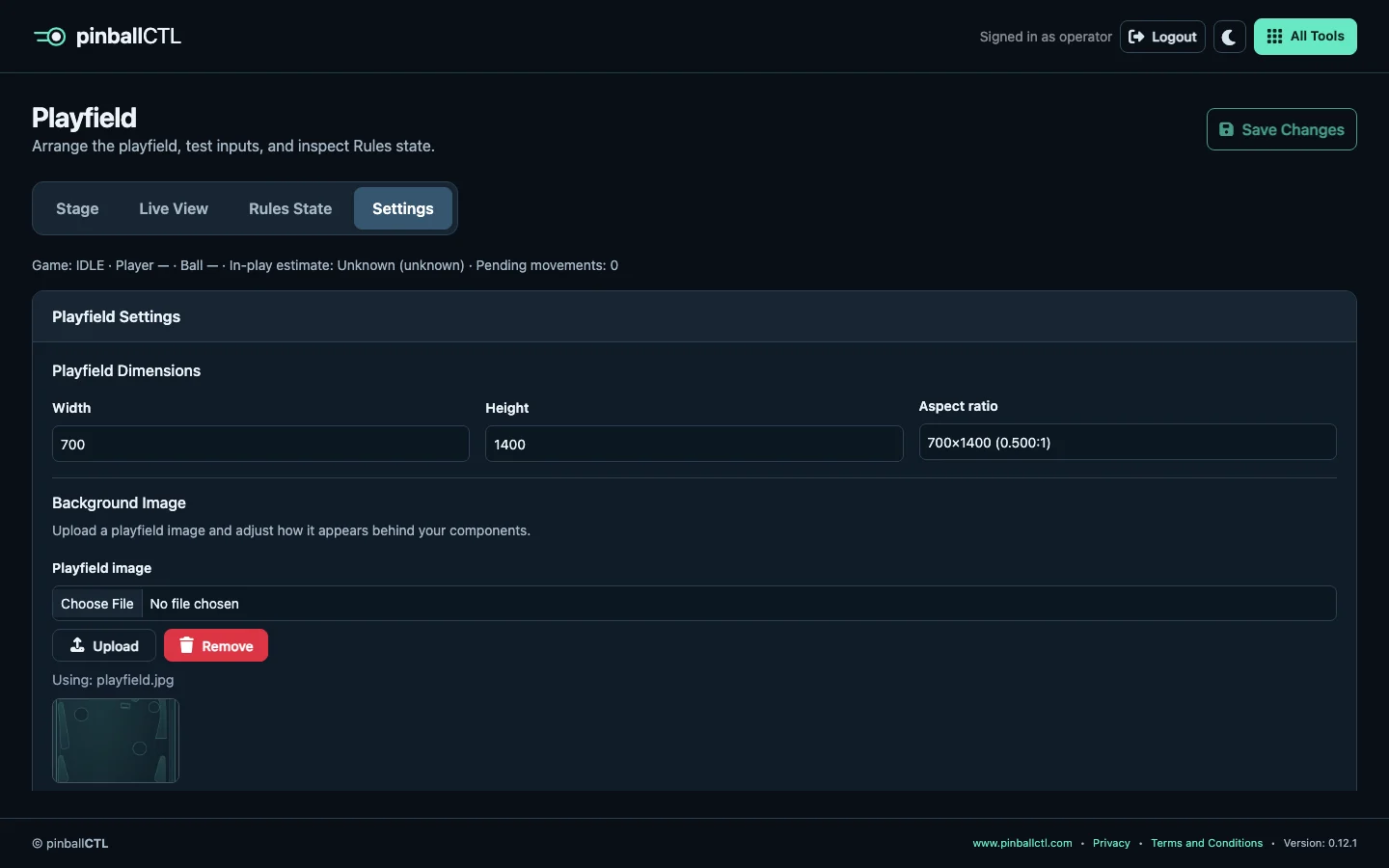
Set the width and height in Playfield Dimensions and check the displayed aspect ratio. In Background Image, upload or remove the image and choose its fit, position and opacity. The browser remembers the last tab you opened.
Keyboard Binding System
- Select a component in Stage.
- Select Capture in the inspector and press a key.
- Configure the key-down and key-up gestures.
- Save and test the shortcut in Live View with output power disconnected.
Live View
Choose Save Changes after editing, then select Live View. The stage reads the latest saved layout and reflects events from the machine and the test controls. Click the stage or tab into the view before using a keyboard shortcut. Shortcuts send events only while this tab is active. Switching tabs releases any held inputs that have a key-up gesture.
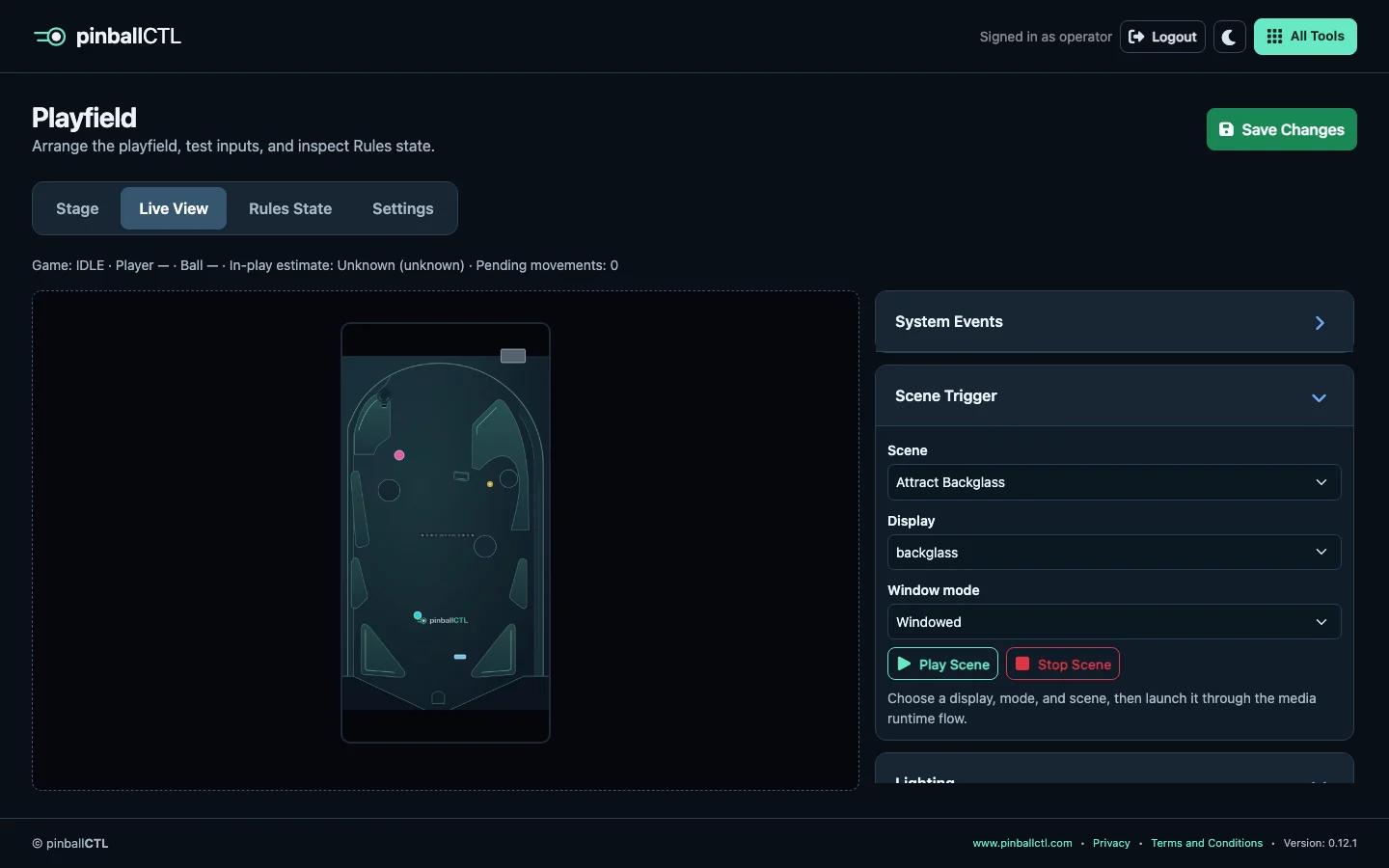
Press a saved shortcut or right-click a component to choose a gesture. Pressed + Released performs a complete press on buttons with both gestures. Use System Events to select and trigger a configured system event.
Use Lighting to start or stop a scene and watch the overlay. The preview can play locally while the bridge is offline. Use Scene Trigger to select a scene, display and window mode, then play or stop the scene through the media runtime.
With an ESP connected, Live View inputs use the normal event path and can actuate configured hardware. Keep output power disconnected while testing inputs. Offline preview shows software behaviour and cannot verify wiring, electrical outputs or time-critical response.
Rules State
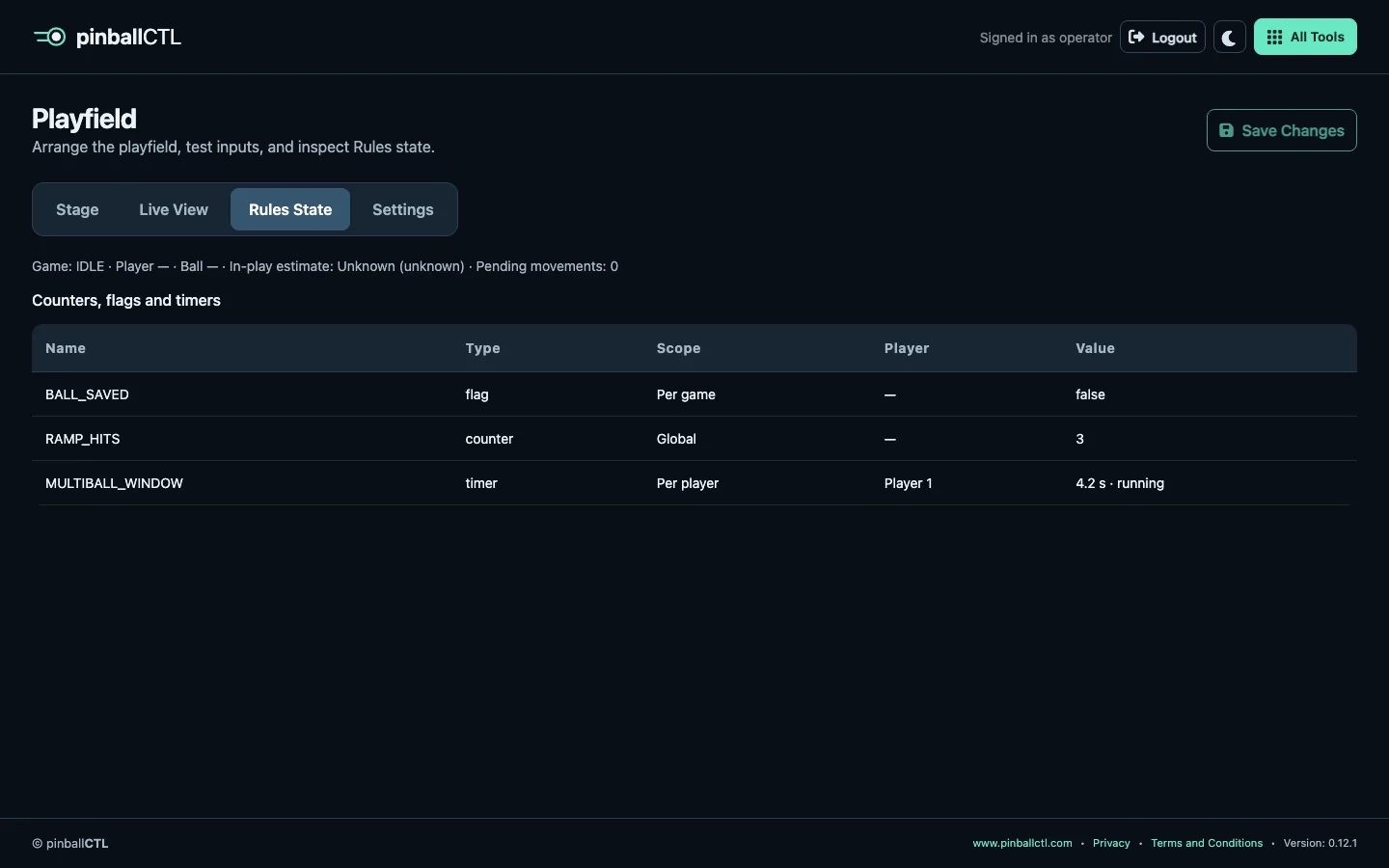
Select Rules State to inspect counters, flags and timers without leaving Playfield. The table shows each value's scope, associated player, and live value. It refreshes while the tab is open.