
Rules
A rule links a trigger to one or more actions. Conditions decide whether those actions run. Start with the exact event you saw in Logs.
Before you start
Start with one mapped input whose actual name/source you have observed in Logs. Keep outputs disabled and the application/bridge running; saved authoring and ESP deployment are separate.
Create and verify a rule
-
Choose Add Rule, then set a clear name and enabled state in Metadata. Expected: the draft can be identified without relying on row position.
-
In Triggers, select the observed source and event. Start with one trigger and no conditions. Expected: the match corresponds to your actual input.
-
In Actions, add a distinct Custom event using the System Fire Event / Emit Event action. Review Summary and correct validation errors. Expected: required targets and parameters are complete without selecting an output.
-
Choose Save, inspect sync status and use Sync to ESP for deployed configuration. Expected: the saved configuration and deployment result are explicit; a successful save alone is not sync.
-
Operate the input once and inspect Logs for the trigger and derived event. Add one condition only after this test works. Expected: a condition blocks or permits the response exactly as intended.
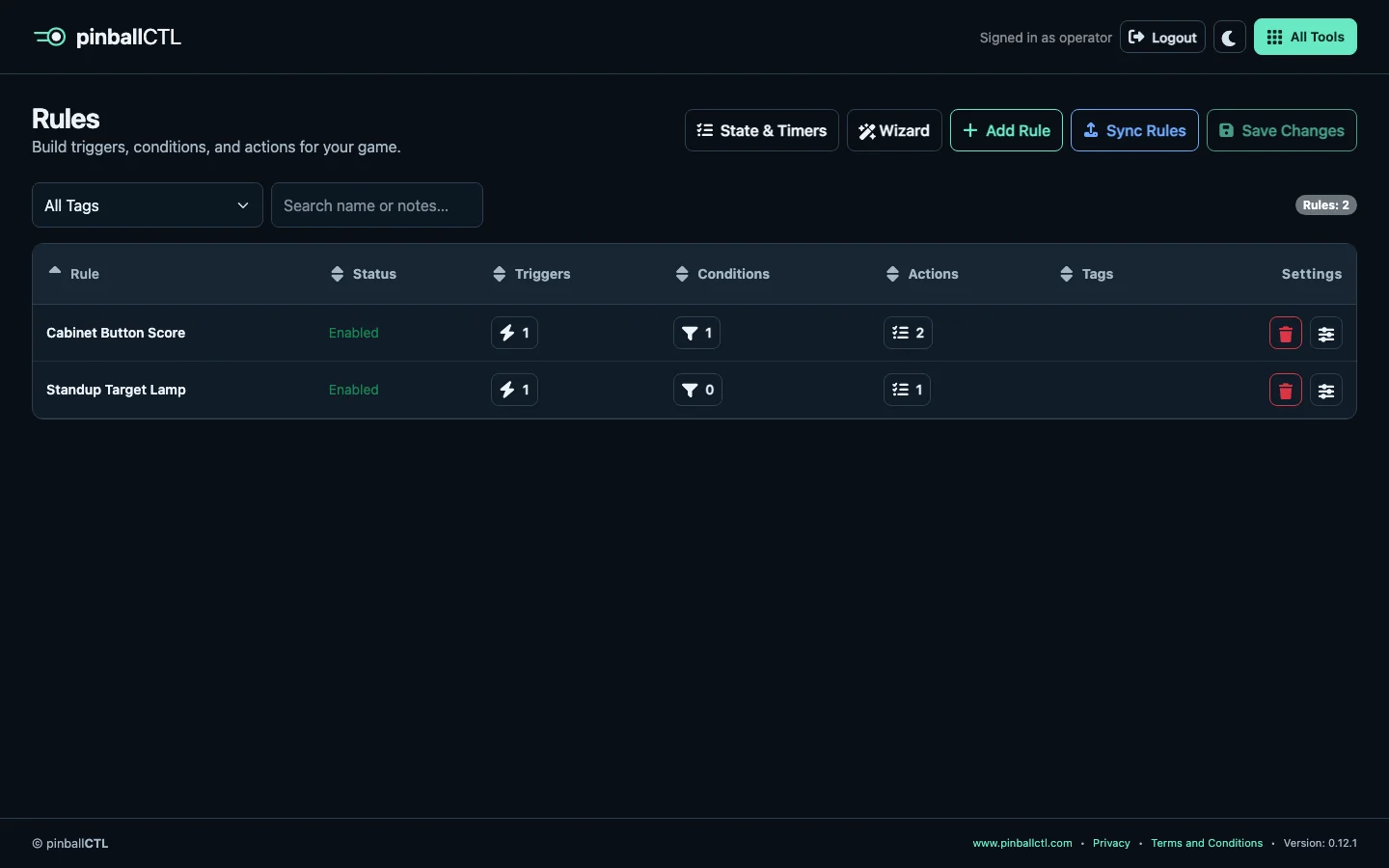
- Rule name identifies the draft. 2. Trigger/condition/action counts open the relevant editor tabs. 3. Sync status distinguishes saved changes from deployed behaviour.
State and timers
Open Rules → State & Timers while the game is idle. Add a Counter, Flag or Timer, give it a name and choose its scope. Select the same name in your triggers, conditions or actions. Existing flags and counters use Global until you change them. Changing scope clears the previous value for that name.
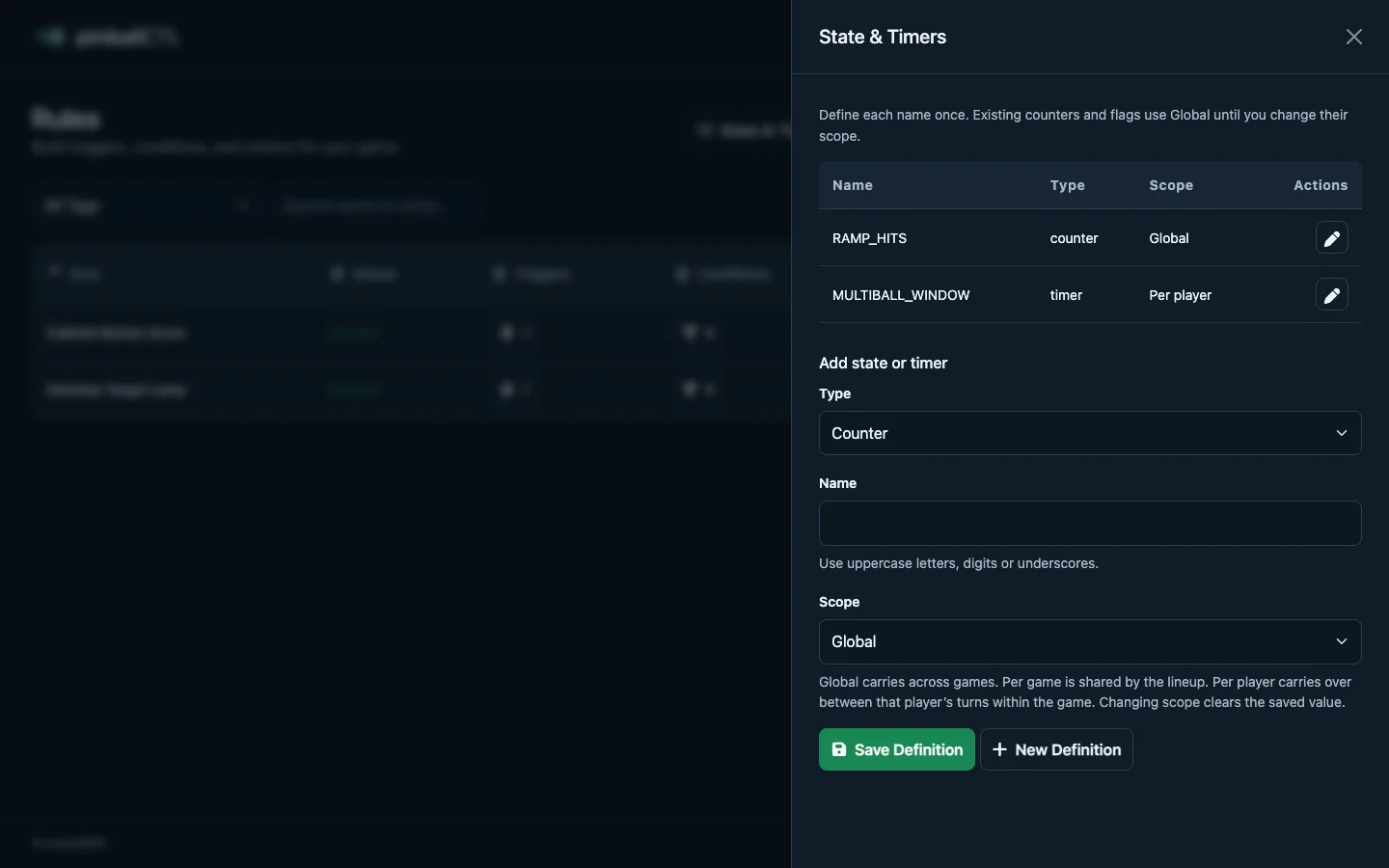
| Scope | Lifetime | Example |
|---|---|---|
| Global | One value for the machine, retained across games | Count lifetime jackpots |
| Per game | One value shared by the current lineup, cleared when the next game starts | Any three hits light a shared jackpot |
| Per player | A separate value for each player, retained across their turns in the current game | Each player tracks their own mission shots |
Share three hits between players
- Create the Per game counter
TEAM_HITSand flagJACKPOT_LIT. - On a target hit, use Increment Counter to add one to
TEAM_HITS. - Add a rule with the same trigger that checks
TEAM_HITS >= 3and setsJACKPOT_LITto true. Order the increment rule before the check rule in the saved list so the check sees the latest hit. - Add a rule for the collection shot with the condition
JACKPOT_LIT = true. Emit a custom event such asTEAM_JACKPOT_COLLECTED, then clear the flag and counter if you want another round. Configure Scoring to award points on that custom event. Either player can contribute, and the collecting player gets the points.
Start, pause or expire a timer
Create a timer and choose its duration in milliseconds. Use Start Timer to start it from the configured duration. Pause Timer freezes it, Resume Timer continues from the remaining time, and Reset Timer clears it until the next start.
Continuous is available for global and per-game timers. It counts across turns and during a game pause. A per-game timer stops with the game.
Ball in play counts only while Game Management reports an active ball. Per-player timers always use this clock. If a player drains with 12 seconds left, their timer holds at 12 seconds until their next launch.
Use Timer remaining in a condition to compare the current milliseconds, or Timer expired as the trigger for a named timer. Expiry arrives without another switch hit. If a play-time expiry arrives after its turn closes, the original player’s Rules state can still update. Output, presentation and manager actions from that late rule are skipped.
Rules backups include timer definitions. Restoring Rules or manager state clears running countdowns and pending expiry events.
Use Playfield → Rules State to inspect the scope, player, and current value of each counter, flag and timer while testing.
Check the result
Start with the safe event-only example in Quick Start. Pi-owned state, conditions and media actions require the Pi runtime; a logical flag does not arm the controller.
Safety: Avoid self-triggering event loops, duplicate physical output rules and rapid repeat pulses. Validate with coil power off before any powered test. Preserve arming, cooldown and watchdog requirements.
Troubleshooting
If the rule does not fire, check the exact input event/source, enabled state, validation, save/sync and each condition. If it fires twice, inspect duplicate rules and press/release or gesture selection before changing timing.
Related guides
Next: Quick Start, Rules Wizard, Events in Logs, Lighting.
The rules list and editor
Top bar controls
Select Add Rule to create a draft and open it in the editor. Save Changes writes the configuration to the Pi and becomes available when you edit a rule. The browser warns if you try to leave the page with unsaved changes.
Use Sync Rules to deploy the saved rules to the ESP. If the draft has unsaved edits, the page prompts you to save first. A green outline on the sync button indicates that the saved rules differ from those on the ESP. The button stays muted while the app checks sync status or when the rules already match. If syncing fails, check the bridge and ESPLink connection.
Filters and rules table
Use All Tags to show rules with a particular tag, or enter text in Search name or notes…. Clear Filters appears when a filter is active.
Each row shows the rule name, enabled state, trigger, condition and action counts, and tags. Select a count to open its tab directly, or select Rule settings to open the full editor. Use Remove rule to delete the rule, then save the change.
Rule settings panel
The editor opens in a panel on the right. Close or Esc returns to the list and keeps draft edits. Save Changes in the panel validates and saves the same draft as the page button. Use Sync Rules afterwards to deploy the saved configuration.
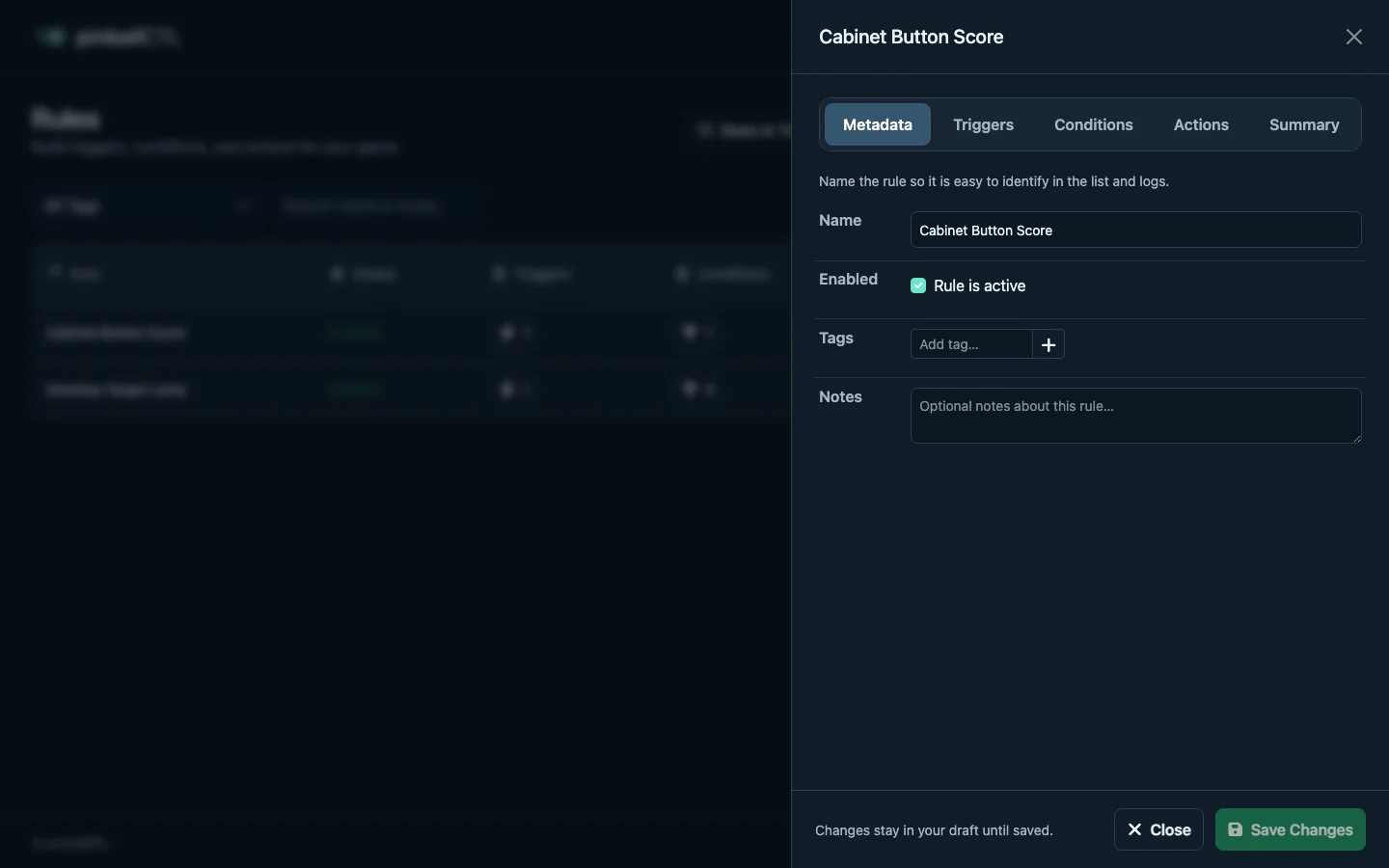
The panel has Metadata, Triggers, Conditions, Actions and Summary tabs. A red ! on Triggers or Actions calls attention to missing or invalid fields.
Metadata tab
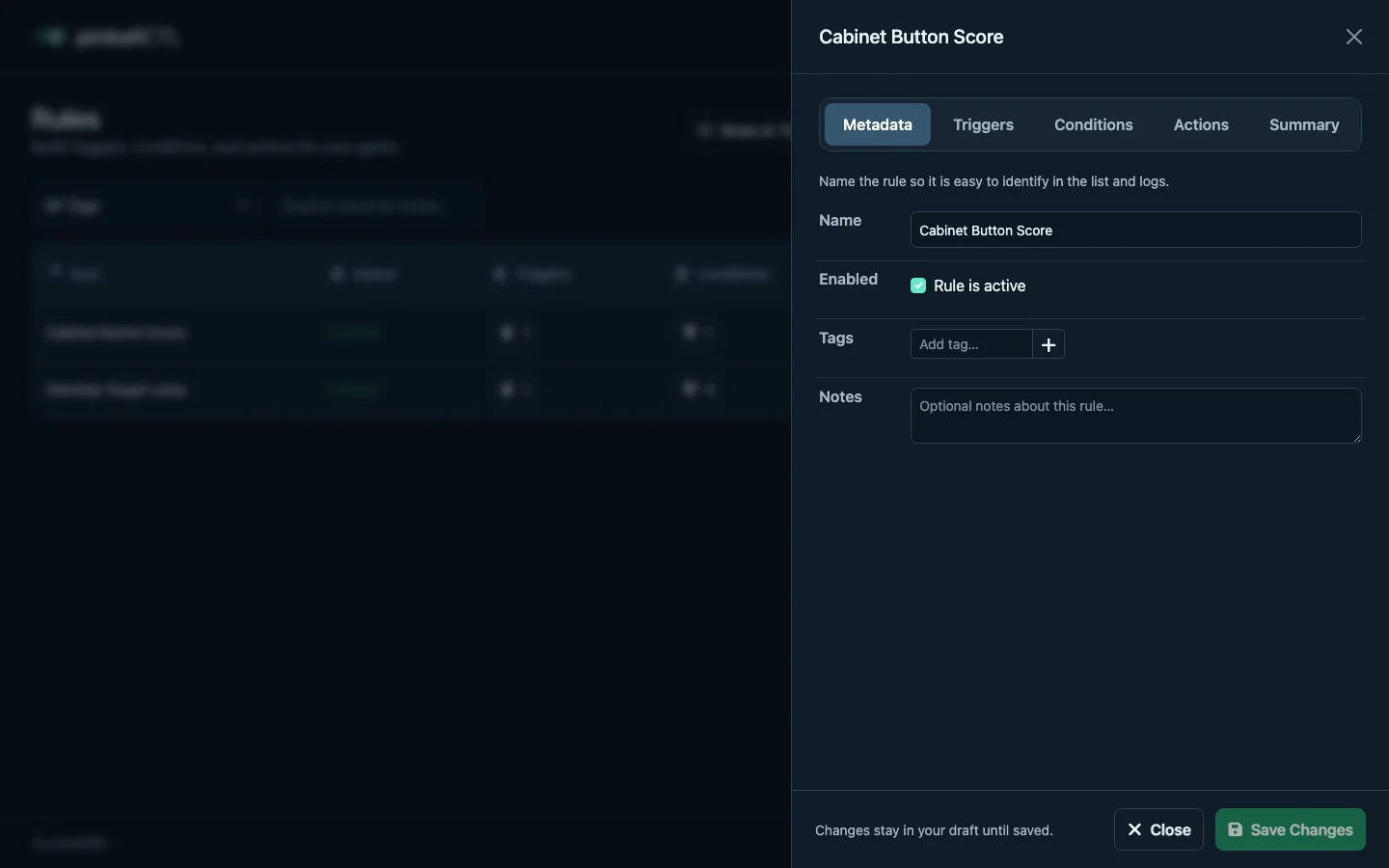
Give the rule a clear Name, use Rule is active to enable or disable it, and write any useful context in Notes. Use Add tag… to assign or create a tag. Tags appear as coloured chips that you can remove individually. The tab’s Summary block describes the rule in plain text.
Triggers tab
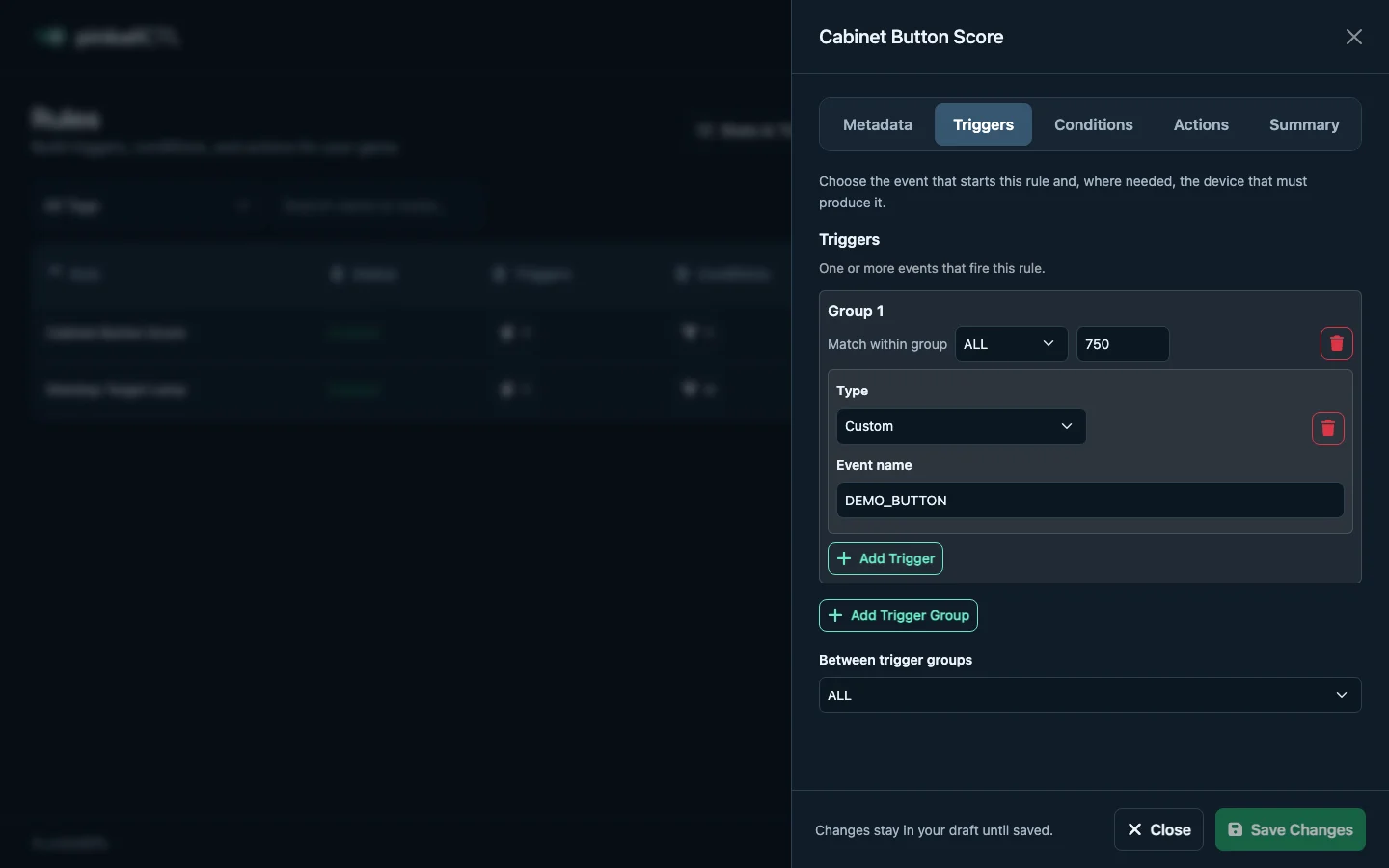
Use Add Trigger Group to create a group, then Add Trigger to put an item in it. Set Match within group to ALL or ANY, and use Between trigger groups to combine the groups. Window ms sets the time allowed for an ALL group to collect its matches. Use the group’s remove button to delete it.
Choose Hardware, System or Custom as the trigger type. For Hardware, select the device first, then choose an event from those available for that device. For example, buttons can report PRESSED, RELEASED, CLICKED, DOUBLE_CLICKED, HELD and REPEAT_WHILE_HELD. Switches and optos can report OPENED, CLOSED, CHANGED, ACTIVE_FOR_MS and INACTIVE_FOR_MS.
Tilt and motion options can include TILT_NUDGE, TILT_WARNING, TILT_TRIGGERED, LIFTED and DROPPED. NFC and RFID options include NFC_SCANNED and NFC_MATCHED when the device supplies them.
Some hardware events expose timing fields such as windowMs, minMs or repeatMs. Open the Hardware Event Key from the help button to check what each event means.
For a System trigger, choose a category such as Game, Credits, Modes, System, Bridge / Connectivity or Faults / Safety, then select its event. For a Custom trigger, enter the event name. The editor normalises it to uppercase with underscores, as in START_GAME_REQUESTED.
Conditions tab
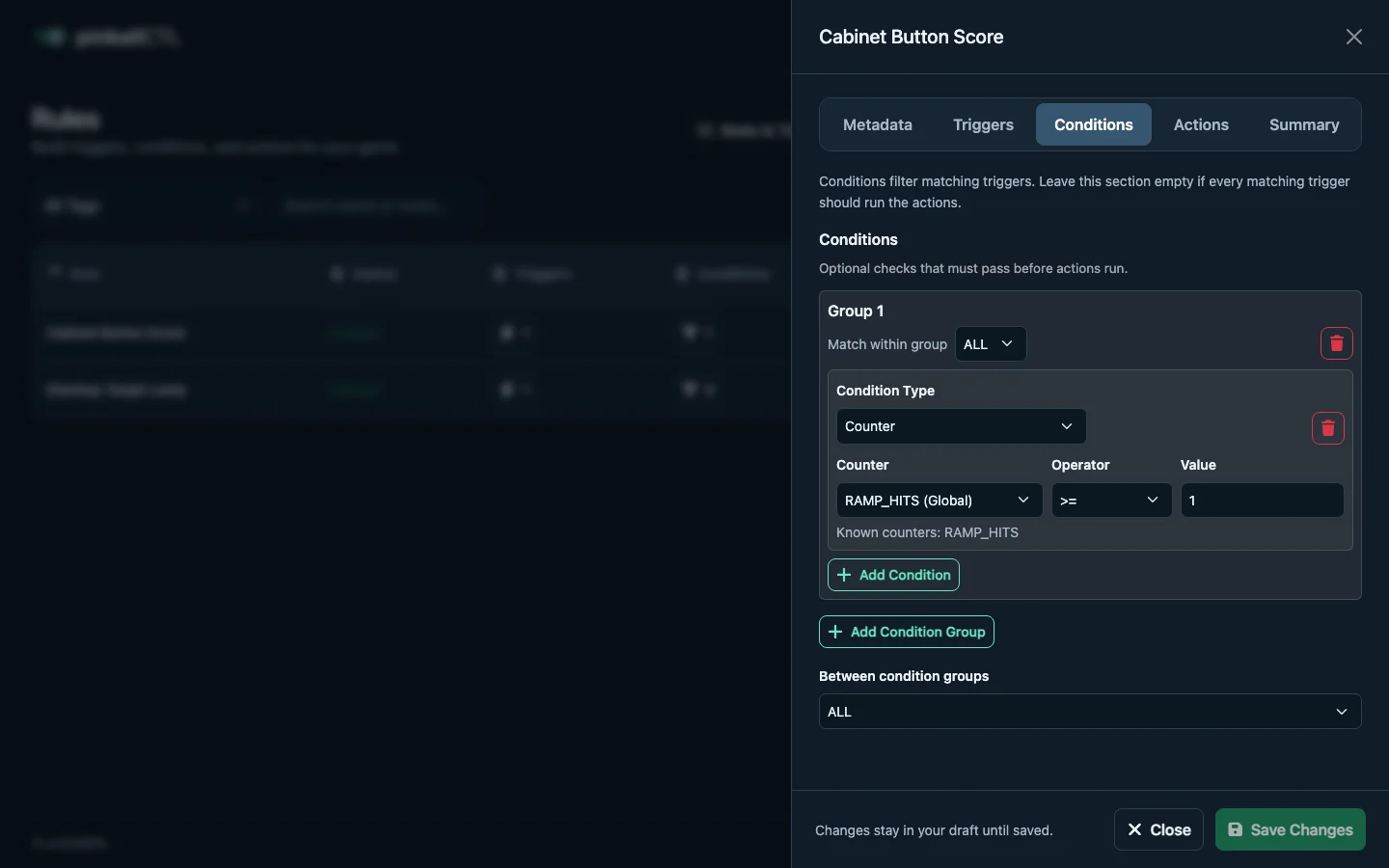
Conditions are optional checks that run after a trigger matches. Use Add Condition Group and Add Condition to organise them. Select ALL or ANY within each group and between groups. The group’s remove button deletes the group and its conditions.
For Flag, select a known flag or choose Custom… and enter a key. Choose True or False for the equality check. For Counter, select a preset or discovered counter, or enter a custom name of up to 32 uppercase letters, digits or underscores. Choose a numeric value and one of the six comparison operators (==, !=, <, <=, > or >=). Known counters appear below the selector.
For Time Since Event, choose a System, Hardware or Custom event and compare the elapsed time in milliseconds with >, >=, < or <=. For Device State, select a device and a state offered for its hardware type, such as open or closed for a switch.
Actions tab
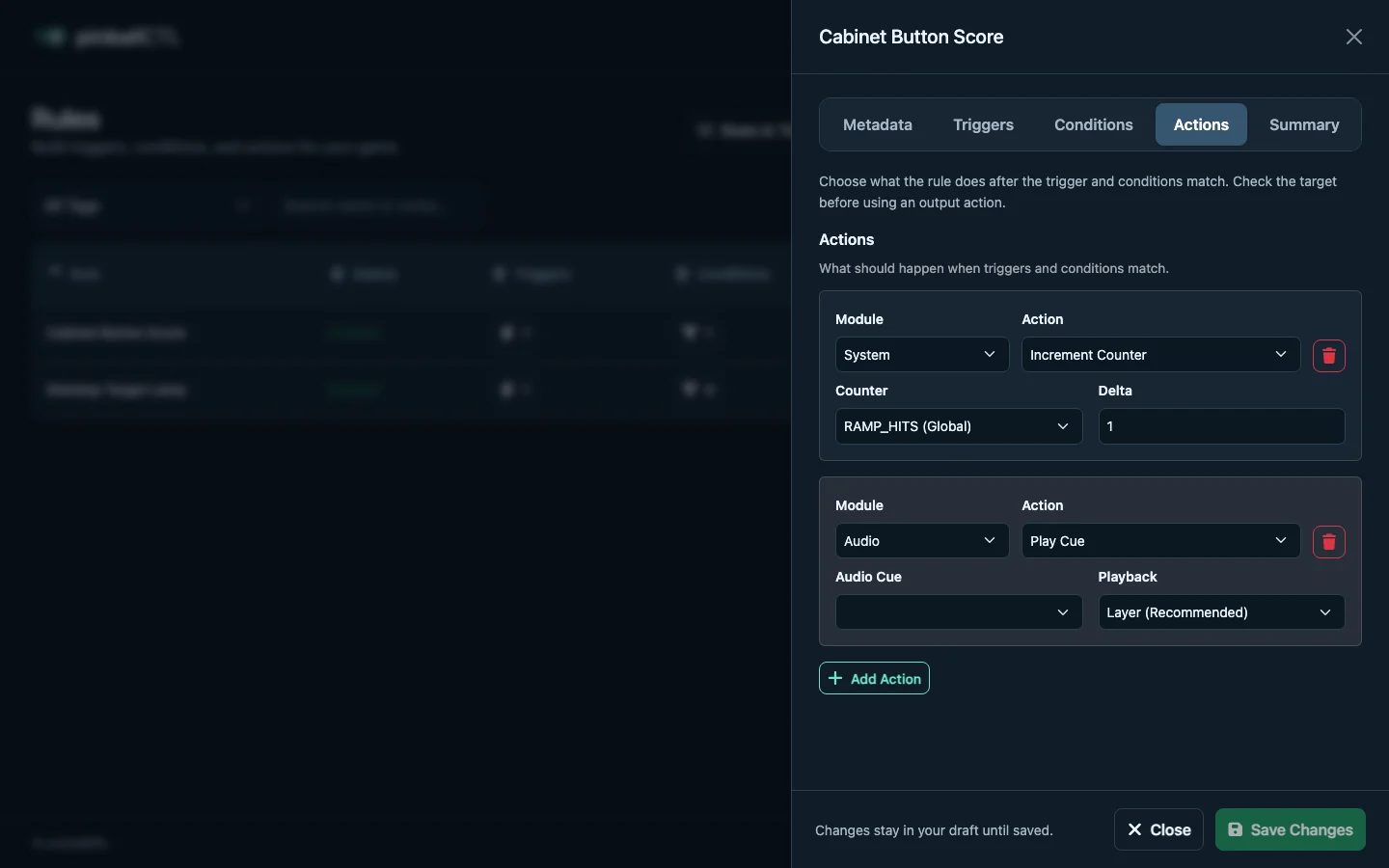
Use Add Action to add a response, then choose its action type and complete the fields it shows. Each action has its own Remove button.
For Emit Event, choose System to select a category and event, or Custom to enter an event name. Set Flag writes a true or false value. Set Counter writes a value to a preset, discovered or custom counter, and Increment Counter changes it by the specified delta.
Pulse takes an output and a duration in milliseconds. Set Output takes an output and a value of HIGH, LOW or PULSE. Enter a duration when using PULSE. Keep output power off during initial rule checks.
With Apply Lighting Scene, select the scene and choose Play immediately or Load paused. Start at Scene start, a frame number within the scene or one of the scene’s tags. Use Stop Lighting Scene to stop the selected scene. Planned LED Pattern and Delay entries are hidden in the normal picker and may appear when loading older rules that already contain them.
Summary tab
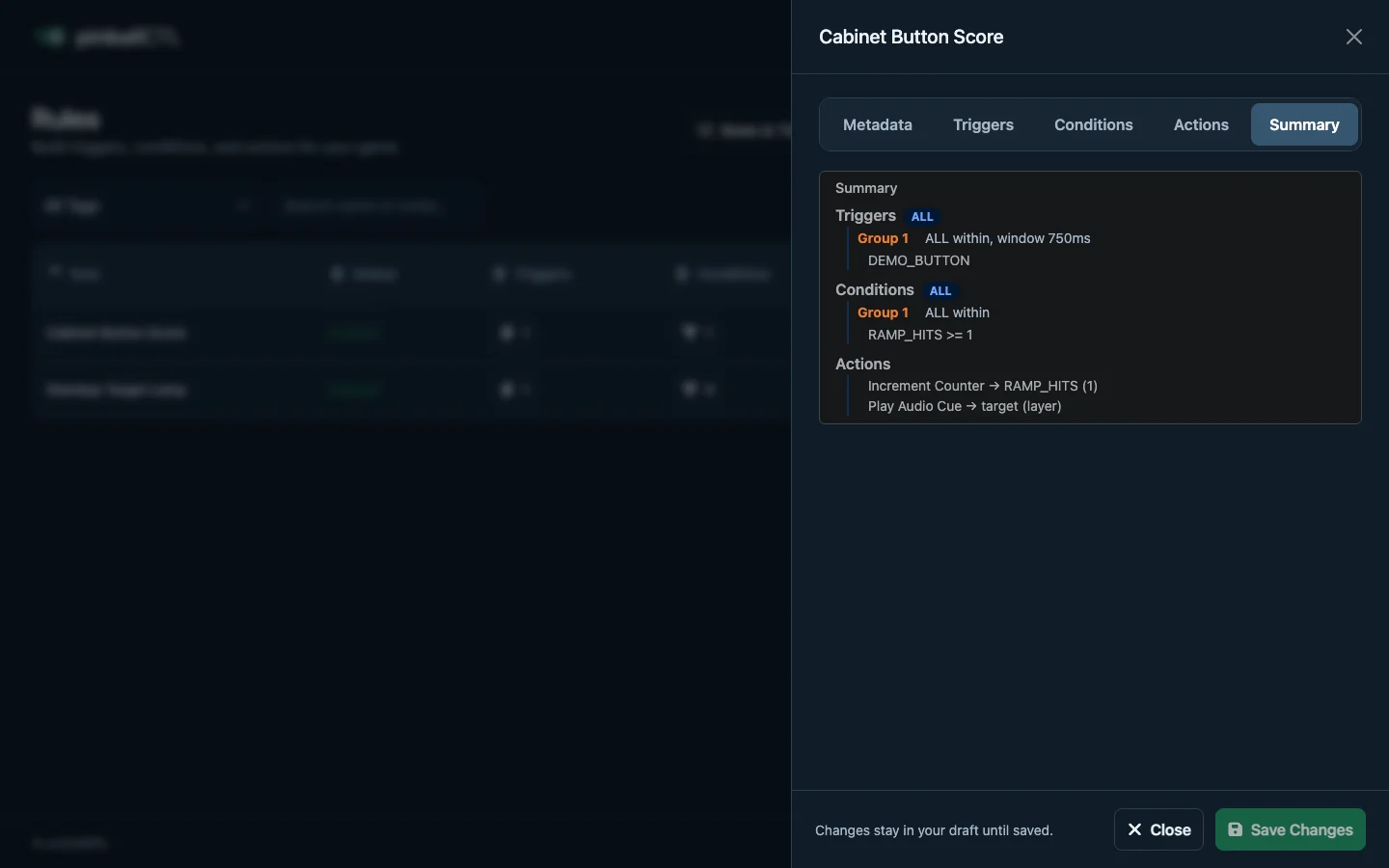
Summary displays the selected rule as formatted JSON. Use it to check how trigger and condition groups are arranged and to confirm action fields before saving and syncing.
Validation
For trigger errors, check that each group contains at least one trigger and that each trigger has its required device or event. For action errors, check the action type and its target, any counter name, value or delta, and the selected lighting frame or tag.
Practical setup examples
To request a game start from a button, choose a hardware trigger for the Start button’s CLICKED event. Leave conditions empty and use Emit Event to send START_GAME_REQUESTED as a custom event.
To count a bonus only during play, use the lane switch’s CLOSED event. Check that Game Management reports BALL_ACTIVE and Ball Management reports a known inPlay value above zero. Use Increment Counter to add one to BONUS.
For a held button, select REPEAT_WHILE_HELD and set repeatMs. Use a flag condition to gate the response and configure the duration if the action is Pulse. Verify the repeat and the condition with load power off.
To cue a lighting scene at a tagged point, select the Modes event MODE_STARTED and use Apply Lighting Scene. For example, choose mode_intro, select Load paused, and start at the intro_start tag. The scene waits at that point until another rule continues it.
For a fault indicator, use the Faults / Safety event FAULT_RAISED and Set Output to drive the warning output HIGH.
Authoring tips
Use short, specific rule names and tag related rules so you can filter the list by mode. Use system events for lifecycle changes and hardware events for player inputs. Group conditions when a rule has several checks, and review the Summary before syncing to hardware.
Related Features
Execution on the Pi and ESP
One rule can respond to a flipper switch with both Set Output and Play Audio Cue. With rules runtime version 3, the ESP handles the output through its coil safety checks and forwards the same switch event so the Pi can play the cue. This applies to hardware triggers the ESP can evaluate locally, including those sent through Live View.
The Pi evaluates conditions, event history and multi-input ALL triggers. When the rule needs that decision, the Pi sends eligible hardware actions back to the ESP after the checks pass. Time limits and fresh-input checks still apply. The Pi expands LCD text placeholders and runs audio, media and other host actions.
Update the Pi software and ESP firmware, then sync Rules to activate per-action routing. Rules synced before this update retain whole-rule routing until the next sync. Firmware supporting runtime version 2 continues to use whole-rule routing. Rules that require Pi evaluation need at least version 2.
Conditions and state actions
Flags compare true or false. An unset flag starts false. Set Flag writes a logical rule value. Coil arming stays under firmware safety control.
Set Counter replaces an integer value. Increment Counter adds its delta, and a negative delta subtracts from the counter. Unset counters start at zero. Values are signed 32-bit integers, and increments stop at the bounds. All six comparison operators are supported.
Time Since Event compares the elapsed milliseconds since the previous occurrence of the named event. A never-observed event fails the condition, including a less-than comparison. If you choose the current event’s name, the condition still measures from its previous occurrence.
Device State compares the observation captured with the event. Unknown state fails the condition, including an INACTIVE check. Firmware covers up to 32 distinct condition devices, with mapped identifiers up to 128 characters. Input state is debounced, and coil state comes from the safety controller.
Conditions support ALL/ANY within each group and ALL/ANY across groups. Empty condition groups add no restriction. Unsupported conditions or invalid operators fail closed. A rule with unsupported actions or invalid state-action values is skipped and logged rather than partially firing hardware.
Rule counters and flags are shared by web workers and the bridge through transactional per-instance storage in rules/runtime.sqlite3. They persist across process/machine restarts. Reset game-specific counters explicitly with Set Counter (for example, a GAME_STARTED rule setting bumper hits to zero). Rule reloads preserve values; trigger history is tied to the rule definition. BOOT_COMPLETED clears gesture/timing/device history. These counters are logical rule values, not an automatic credit accounting or player-management service.
Game and ball lifecycle state is owned by the dedicated managers. Use their read-only condition fields and typed request actions. Legacy writable game flags/counters and ball/credit aliases are removed in this beta; affected rules must be recreated. ENABLE_GRANTED/ENABLE_REVOKED and IDLE_ENTERED/IDLE_EXITED still update their unrelated platform flags. Custom flags/counters remain writable.
State transitions are evaluated serially in event ingress order and committed before external actions are dispatched. Later rules in the saved list can therefore test counter/flag changes made by earlier rules for the same event. External hardware actions retain priority over slower audio/media work. Use separate emitted events when an explicit later phase is required. Inspect current values with authenticated GET /api/rules/runtime-state while testing.
Grouped triggers and event chains
ALL trigger items must have occurred within the group's Window ms; ANY needs one matching item. Group results are combined using the outer ALL/ANY setting. A successful match consumes its accumulated inputs, so one old switch hit cannot repeatedly qualify a multi-input rule. The default group window is 750 ms. Button hold/repeat/double-click parameters and switch active/inactive duration parameters filter their corresponding generated events.
An Emit Event action can trigger another rule. Connected events return through the ESP confirmation path; offline simulation evaluates the chain locally. Generated chains stop after 16 levels to bound accidental cycles. Duplicate confirmed event identities do not increment state twice; deduplication/history storage is bounded.
Hardware safety and testing
Pi-approved output/pulse actions use the ESP's existing output executor, arming requirement, cooldown, maximum-on/hold limits and recovery handling. A Pi hardware decision expires after 250 ms; it cannot replay an old press after recovery or energize an input-held output after release. Host loss or a slow Pi can therefore suppress a conditional hardware action. Keep latency-critical flipper/bumper response in a separate unconditional ESP rule and put scoring/counters/media in a Pi rule.
Switch closed/open/changed and active/inactive duration events are generated on the ESP. NFC matching conditions on an incoming NFC_MATCHED event filter its tagId (or uid) against the configured IDs; an actual NFC reader still requires a driver that publishes those events. This change does not add a reader driver or infer hardware wiring.
Delay and LED Pattern remain explicitly planned registry entries, hidden from the normal action picker; they are not executable actions. Supported audio/media/lighting actions still depend on valid configured assets, scenes and devices.
Validate with coils disabled first: increment a counter on repeated input, check its threshold, verify a flag blocks the reward, test ALL/ANY timing and confirm a single reward event reaches scoring/audio/media. Then test on the target Pi/ESP, including lost connection, release while the Pi is busy, re-sync, reboot and re-arming. Host tests and a successful firmware build do not replace physical timing and safety verification.
See Game Management, Ball Management and the ownership contract.
Rules Wizard
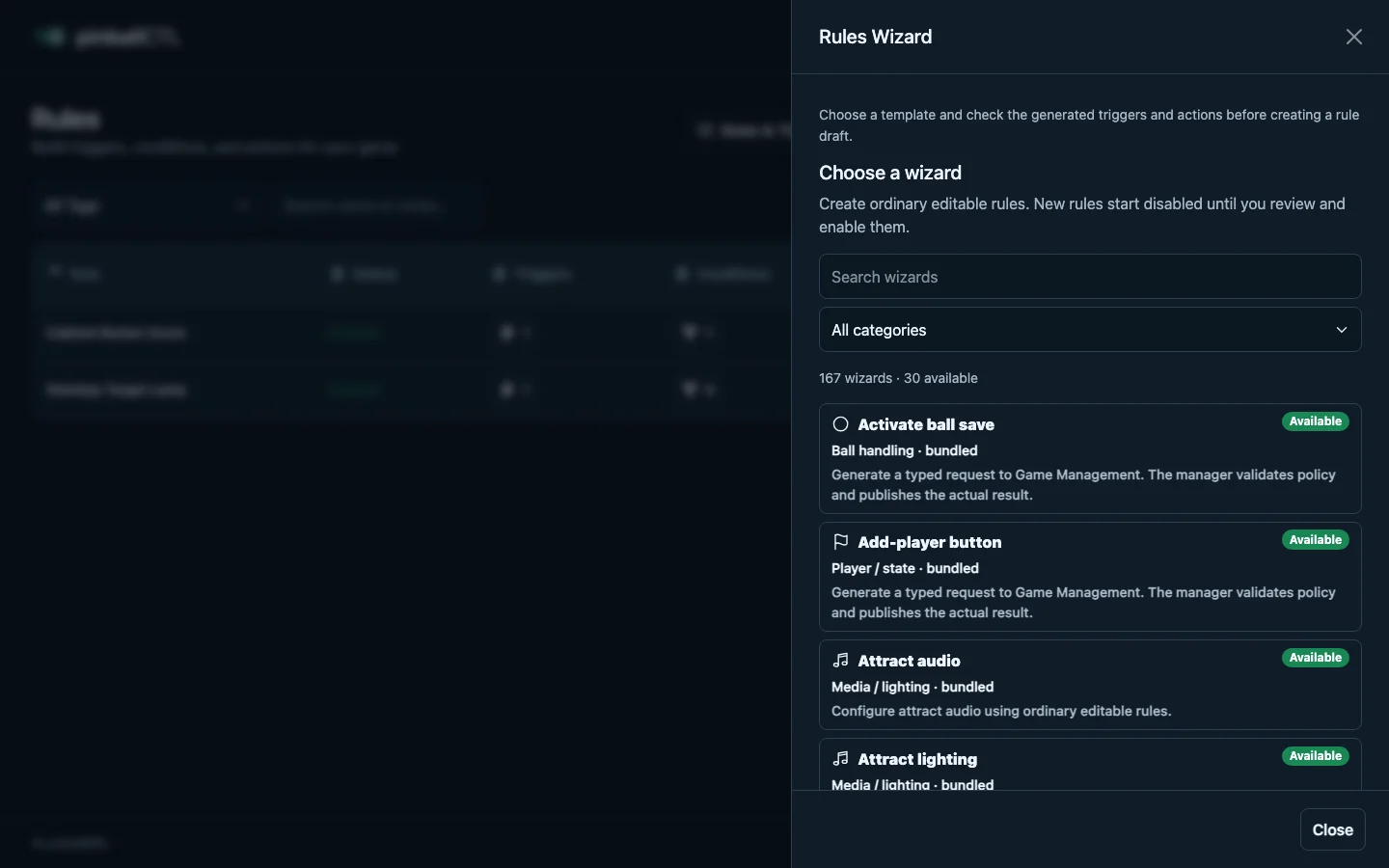
Open Wizard in the Rules header to create editable rules from a template. Save any pending Rules edits first. Search the catalogue or filter by category, then choose an Available template. Unavailable entries explain which prerequisites are missing. Use existing mapped inputs and saved audio cues, lighting scenes or media assets when the template asks for them.
Preview and create rules
Answer the template’s questions and select Preview rules. Review any warnings, expand the generated rules, and check their triggers, conditions and actions. Back lets you revise your answers. Changing an earlier answer can hide later questions and remove their associated actions. Preview leaves the saved Rules list untouched.
Select Create rules to save the generated rules on the Pi. Open Rules returns you to the list, where the new rules are tagged Wizard and start disabled. They are ordinary independent rules you can edit or remove individually. When ready, enable the rules in Metadata, select Save Changes, then Sync Rules to deploy them. Test with output power off first.
A connected ESP must meet the selected template’s minimum Rules runtime version. Offline authoring can save disabled rules, with the normal compatibility check when you sync. Templates for game start, adding a player, extra ball and ball save send typed requests to Game Management, which decides the outcome according to its configured policy.
Bumper hit reward
Choose a mapped switch or button, set Hits per reward to a small number such as three, and select a reset event your machine produces. The default is GAME_STARTED. If you want an effect, select an existing audio cue or lighting scene. With the optional effects off, the generated rules still count hits and emit the reward event.
In the preview, check that the increment rule runs before the threshold rule. At the threshold, the rules emit BUMPER_REWARD_REQUESTED, play any selected effects and reset the counter. A separate rule resets it on the chosen event. The counter is global and persists until reset. To award points, configure Scoring to respond to the reward event.
After enabling, saving and syncing, operate the input one hit at a time with output power off. Use Logs and Playfield → Rules State to confirm that the counter increments, one reward occurs at the threshold and the counter resets. If it fails, check the trigger, rule order, enabled state and the event that supplies the reset.
Counters and flags
When a template asks for a counter or flag, choose an existing one to keep its value and scope, or select Create new. The preview shows the proposed name and initial value. Creating the rules adds the new counter at zero or flag at false with Global scope. Adjust the scope in State & Timers if needed. A counter changes when a rule updates it, and a flag changes when a rule or event sets it.
Custom definitions
Developers can add a JSON definition under wizards/user/ in the installation’s instance directory. Open the Wizard to discover it. Use the schema and bundled examples for the supported question types, conditional fields, typed answer references and generated rule structure. The compiler validates machine references, supported actions and minimum runtime versions. Conflicting definition IDs are rejected. Wizard schema and bundled examples